

How to Enable the Conversation Feature
Enable customer messaging in Whols so wholesale buyers and store admins can communicate directly from the dashboard.
Enable the Conversation Feature
Go to Dashboard → Whols → Settings → Conversation. Toggle this setting to “Yes” to allow customers to initiate a conversation with the wholesaler from their My Account page. Enter the Start Conversation Label — the text shown on the popup form title. Once saved, a new Conversations menu appears in your Whols dashboard sidebar.
Link Conversations to Quote Requests (optional)
Go to Dashboard → Whols → Settings → Request a Quote. Make sure Enable is toggled to Yes, then toggle Create Conversation When Request a Quote to Yes and save. A conversation thread is now created automatically whenever a customer submits a quote.
Customer creates or manages conversations
Customers access it from My Account → Conversations. They click Start New Conversation, fill in the subject and message, and submit. They can also view past threads with subject, date, and a View button.
Admin manages conversations
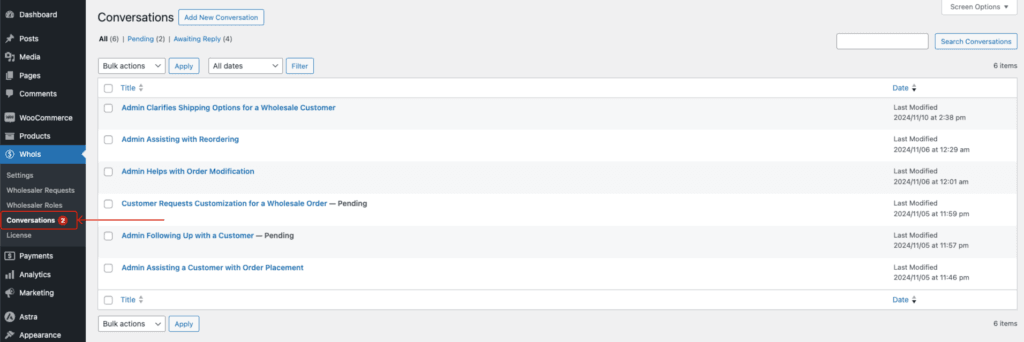
Go to Dashboard → Whols → Conversations to see a list of all conversations with subject, status, and last modified date. Click Edit next to any conversation, type a reply in the Your Message field, and click Send.
If you’d like to communicate with your clients directly through messages, not just email, Whols offers a Conversation feature. This allows you to message customers from the dashboard, and customers can continue the conversation from the My Account page. This messaging system improves communication, enabling faster responses.
What Is the Whols Conversation Feature?
Managing a wholesale store means constant back-and-forth with customers — about quotes, orders, pricing, and availability. The Whols Conversation feature lets you handle all of that directly from your WooCommerce dashboard, without relying on email threads.
Once enabled:
- Customers can start a message thread from their My Account page
- Store admins receive and reply to messages from the Whols dashboard
- Every conversation is stored in one place, linked to the customer account
- A new conversation can automatically start when a customer submits a Request a Quote
This is particularly useful for wholesale businesses where pricing negotiations, custom orders, and bulk queries require direct, ongoing communication.
Requirements Before You Start
- Whols plugin must be installed and active
- You need admin access to your WordPress dashboard
- If you want conversations to trigger from quotes, the Request a Quote feature must also be enabled (see: How to Enable Request a Quote)
Benefits:
- Direct communication with customers.
- Streamlined messaging for quicker problem resolution.
- Conversations stored in one place for easy reference.
How to Enable the Conversation Feature
Step 1: Enable the Conversation Feature
Enable Conversation: Go to the Dashboard > Whols > Settings > Conversation. Toggle this setting to “Yes” to allow customers to initiate a conversation with the wholesaler from their My Account page.
Start Conversation Label: Enter the text that will be displayed on the title for starting a new conversation. This title will appear on the My Account page in a popup form, allowing the customer to start messaging.
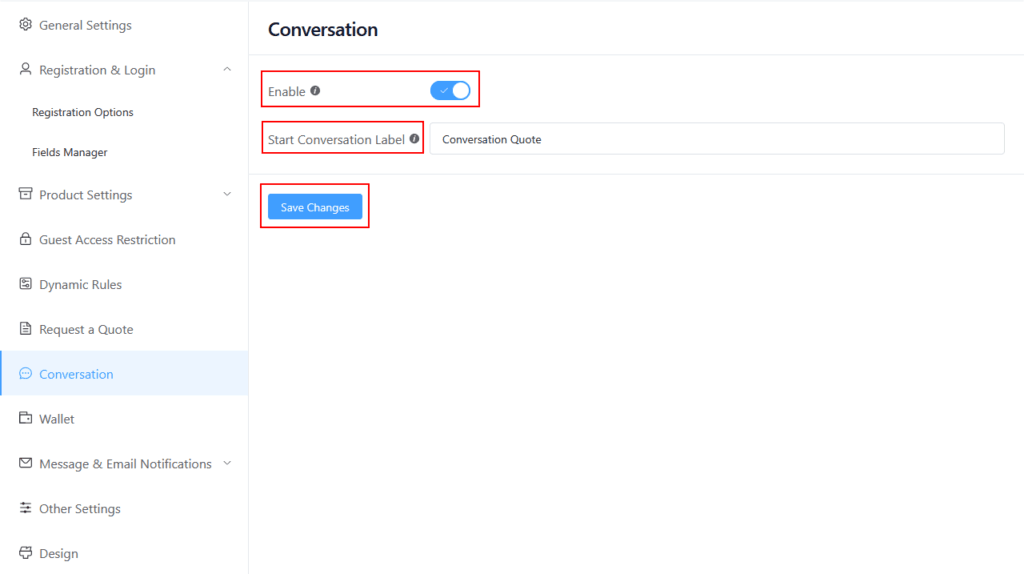
Once saved, a new Conversations menu will appear in your Whols dashboard sidebar.
Note: The label you set appears on the My Account page inside a popup form. Keep it short and action-oriented so customers know what it does.
Step 2: Link Conversations to Quote Requests (Optional but Recommended)
Link with Request a Quote: If you use the Request a Quote feature, you can automatically create a conversation thread whenever a customer submits a quote. This keeps all communication connected to the original request.
To enable this:
- Go to Dashboard → Whols → Settings → Request a Quote
- Make sure Enable is toggled to Yes
- Toggle Create Conversation When Request a Quote to Yes
- Save settings
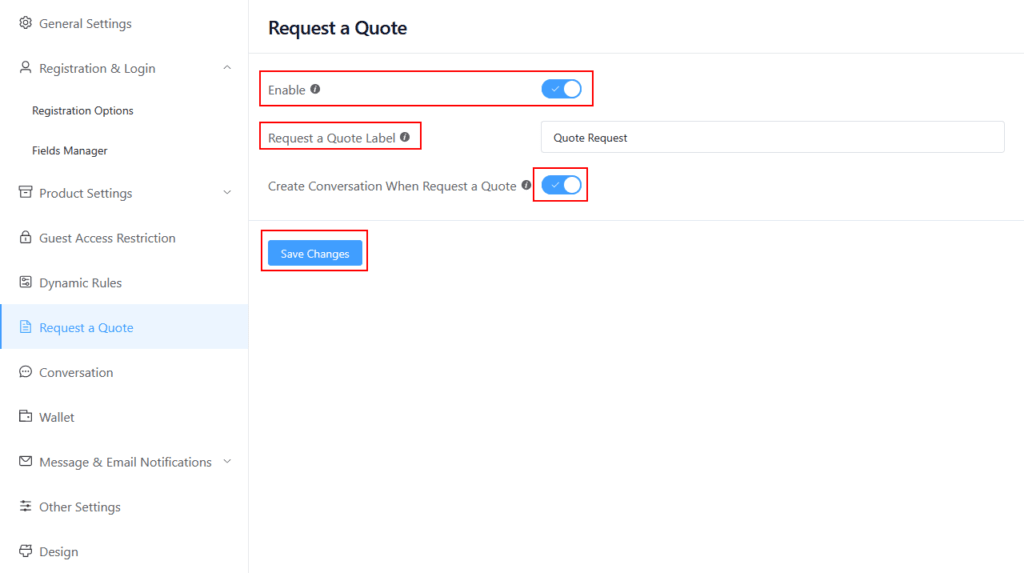
Now, when a customer submits a quote, a conversation thread is automatically created. You can reply directly from the Conversations menu without asking the customer to message you separately.
Step 3: Customer Creates or Manages Conversations
Once the feature is active, customers access it from My Account → Conversations.
Starting a new conversation:
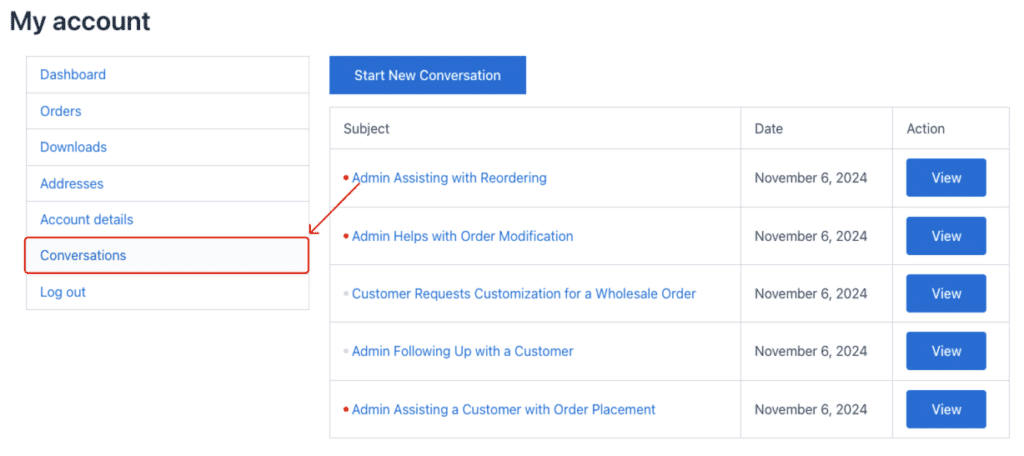
- Click the Start New Conversation button at the top of the Conversations section
- A popup form appears with the label you configured in Step 1
- The customer fills in the subject and message and submits
Viewing existing conversations:
- The Conversations section lists all past threads with Subject, Date, and a View button
- Clicking View opens the full message thread
Inside a conversation, customers can see:
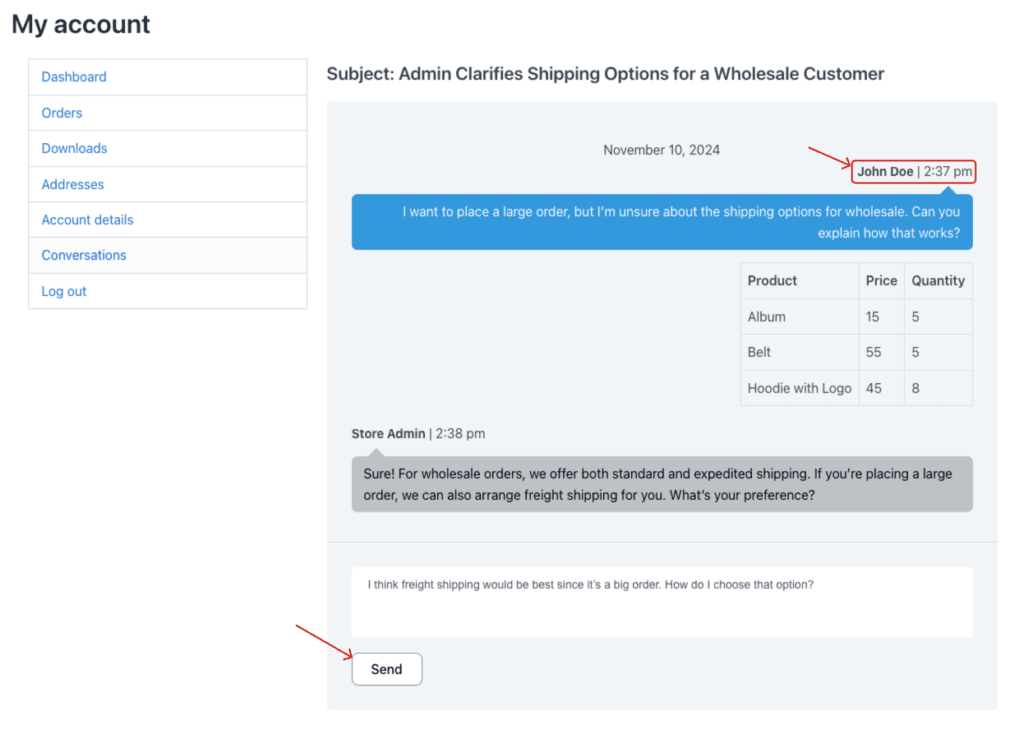
- The full back-and-forth message history
- Product details (Product, Price, Quantity) if included in the thread
- A text input field with a Send button to continue the conversation
Step 4: How Admins Manage Conversations
Viewing incoming conversations:
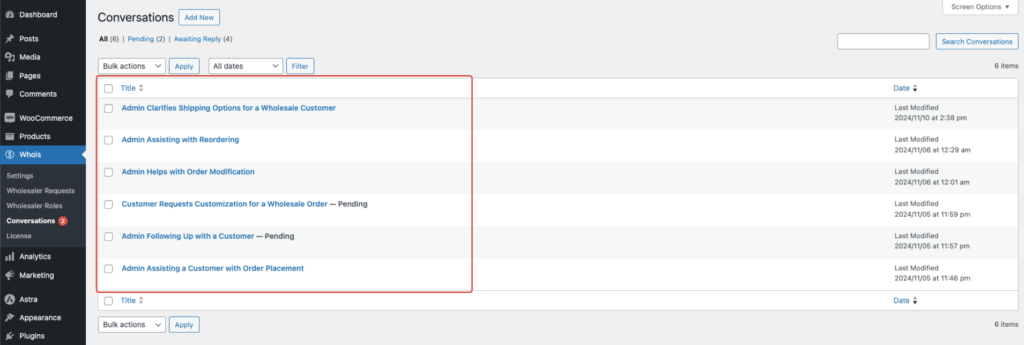
- Go to Dashboard → Whols → Conversations
- You will see a list of all conversations with subject, status (e.g., Pending, Pending Reply), and last modified date
- Click Edit next to any conversation to open it
Replying to a customer:
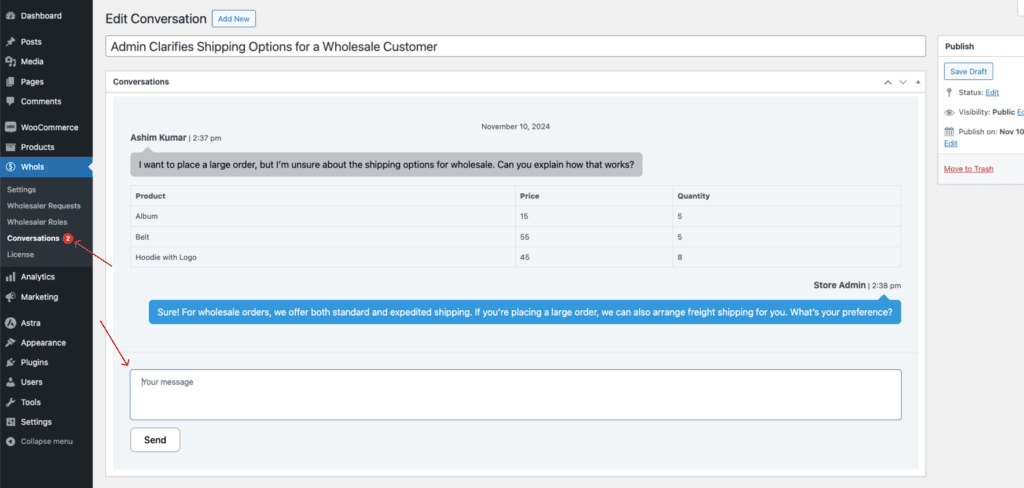
- Inside the Edit Conversation screen, you can see the full thread — customer messages and your previous replies
- The conversation view shows product context (product name, price, quantity) when relevant
- Type your reply in the Your Message field at the bottom
- Click Send
The customer will see your reply the next time they view that conversation from My Account.
Troubleshooting
- The Conversations menu is not appearing in my dashboard. Make sure you saved the settings after toggling Enable Conversation to Yes. Try clearing your WordPress cache and refreshing the page.
- Customers cannot see the Conversations section on My Account. Check that the customer account has the correct wholesale role assigned. If the role is not set, the My Account page may not display the Conversations section.
- No conversation was created after a quote was submitted. Confirm that the Create Conversation When Request a Quote option is enabled in the Request a Quote settings, not just in the Conversation settings. Both must be saved.
- The Start Conversation button is not showing a popup. Check if any JavaScript errors are appearing in your browser console. A plugin conflict may be blocking the popup from loading.
Related Documentation
Last updated on September 16, 2026
Was this article helpful?
Powered by Support Genix