

How to Create Wholesaler Roles
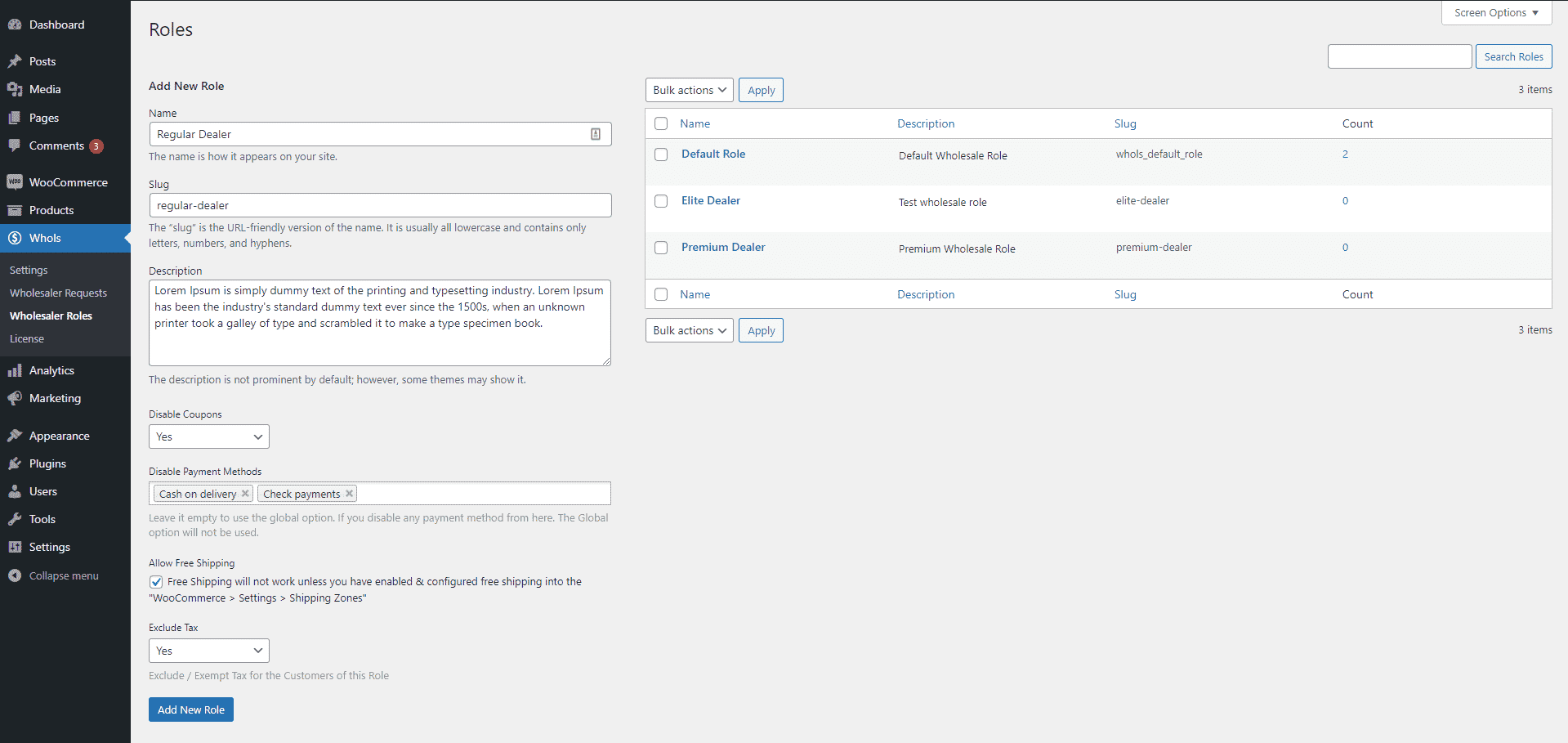
- Name: The name is how it appears on your site.
- Slug: The “slug” is the URL-friendly version of the name. It is usually all lowercase and contains only letters, numbers, and hyphens.
- Description: The description is not prominent by default; however, some themes may show it.
- Disable Coupons: Here you will find 3 options:
- Use Global Option – This will use Whols global option settings.
- Yes – This means coupons will be disabled for this role.
- No – This means coupons will be allowed for this role (if the Whols Global option is enabled).
- Disable Payment Methods: Leave it empty to use the global option. If you disable any payment method from here. The Global option will not be used.
- Allow Free Shipping: Free Shipping will not work unless you have enabled & configured free shipping into the “WooCommerce > Settings > Shipping Zones“.
- Exclude Tax: Exclude / Exempt Tax for the Customers of this Role
Last updated on July 1, 2026
Was this article helpful?
Powered by Support Genix