

How to Set Up Order Quantity Restrictions in Whols for WooCommerce
Want to make sure your wholesale customers order a minimum amount? The Order Quantity Restriction feature lets you set minimum quantities for wholesale prices. This helps you manage your wholesale business better by making sure orders meet your minimum requirements.
Step 1: Product-Specific Minimum Quantities
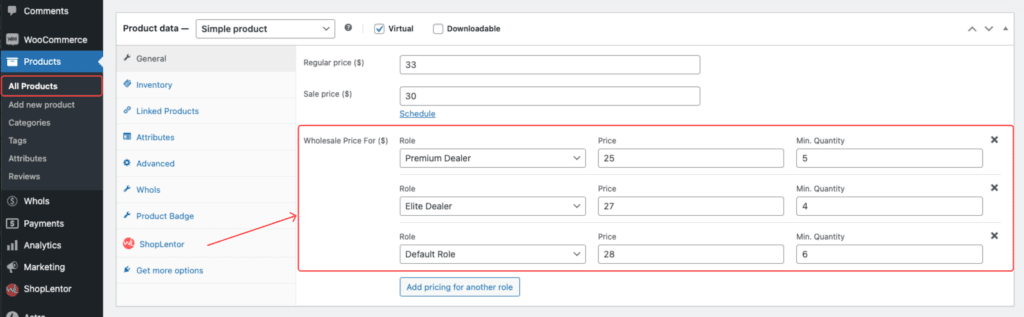
Whols provides granular control over minimum quantity requirements at the individual product level. When editing a product, you can:
- Go to any product’s edit page
- Find the “Wholesale Price For” under the General Tab
- Set minimum quantities just for that product
- Make different minimums for each wholesaler role
Step 2: Category-Based Minimum Quantities
For broader inventory management, implement minimum quantity requirements at the category level:
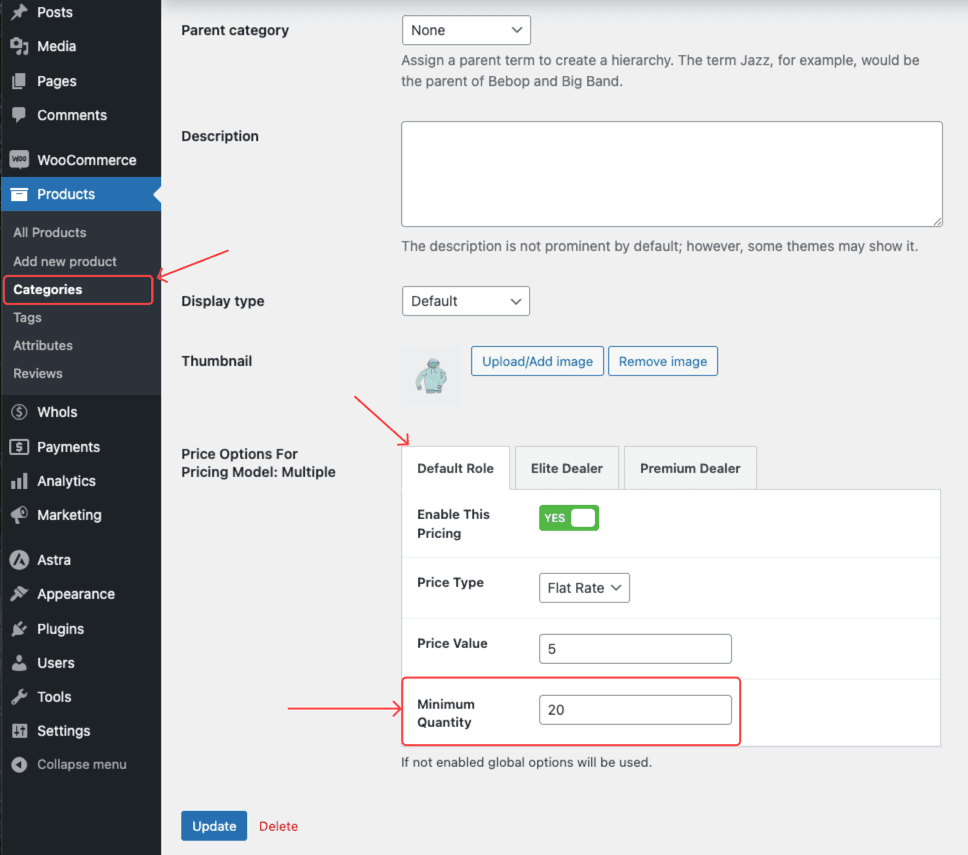
- Go to Products > Categories
- Edit any category or create new category
- Look for the Price Options section
- Set minimum quantities for that category
- All products in that category will apply this minimum quantities
Step 3: What is a Global Minimum Quantity?
The Whols plugin offers global, product-level, and category-level minimum quantity settings. For optimal flexibility, we recommend setting minimum quantities per category or product while using the Min Qty Notice Text feature to communicate these requirements to your customers.
- Go to your WordPress dashboard
- Click on Whols > Settings > General Settings
- Look for “Price Options“
- Find the “Min Qty Notice Text” option
Customizing Minimum Quantity Notifications
The Minimum Quantity Notice Text feature allows you to personalize the message displayed to customers regarding quantity requirements. To implement dynamic quantity values in your notice:
- Use
{qty}where you want to show the number - Example: “Buy
{qty}or more items for wholesale prices” - Leave it empty to use the basic message
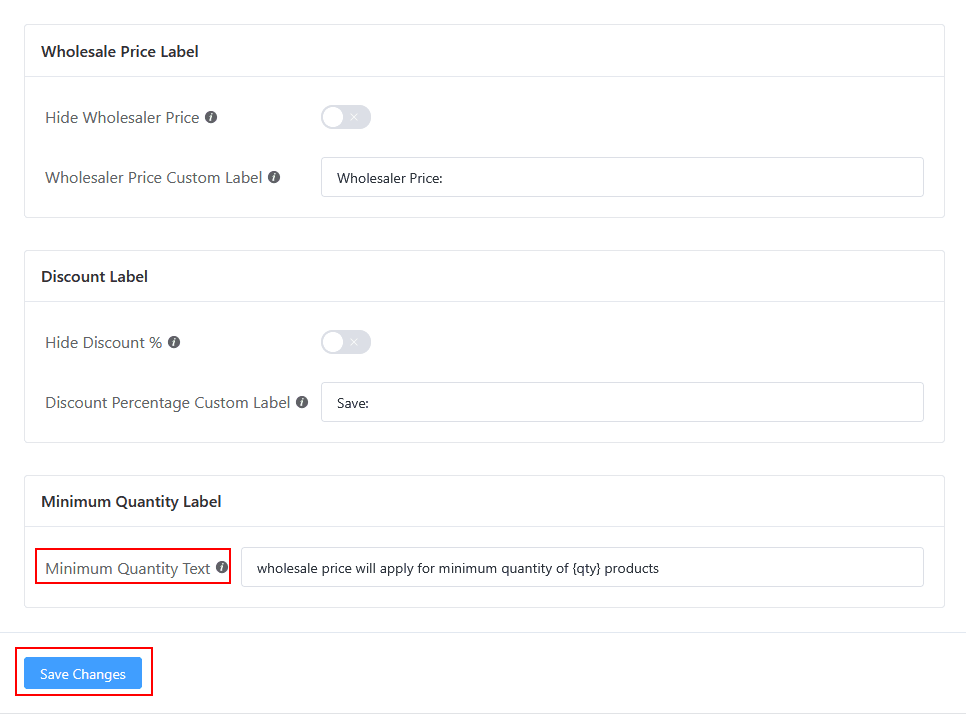
This customizable message helps communicate your product-specific quantity requirements clearly to wholesale customers. When you include the {qty} placeholder, it will automatically display the correct minimum quantity value for each product.
Last updated on November 27, 2025
Was this article helpful?
Powered by Support Genix