

How to Use Quick & Bulk Edit for Wholesale Products in Whols
The Quick & Bulk Edit feature in the Whols plugin allows you to easily manage wholesale-specific product data across your WooCommerce store—either individually or in bulk—saving you valuable time and effort.
Enabling the Feature
Note: This feature is enabled by default. However, you can disable it if needed.
- Go to Whols → Other Settings.
- Scroll to the bottom and locate the “Enable Quick & Bulk Edit Products” toggle.
- Uncheck the box to disable, or check it to re-enable the feature.
- Click Save Changes.
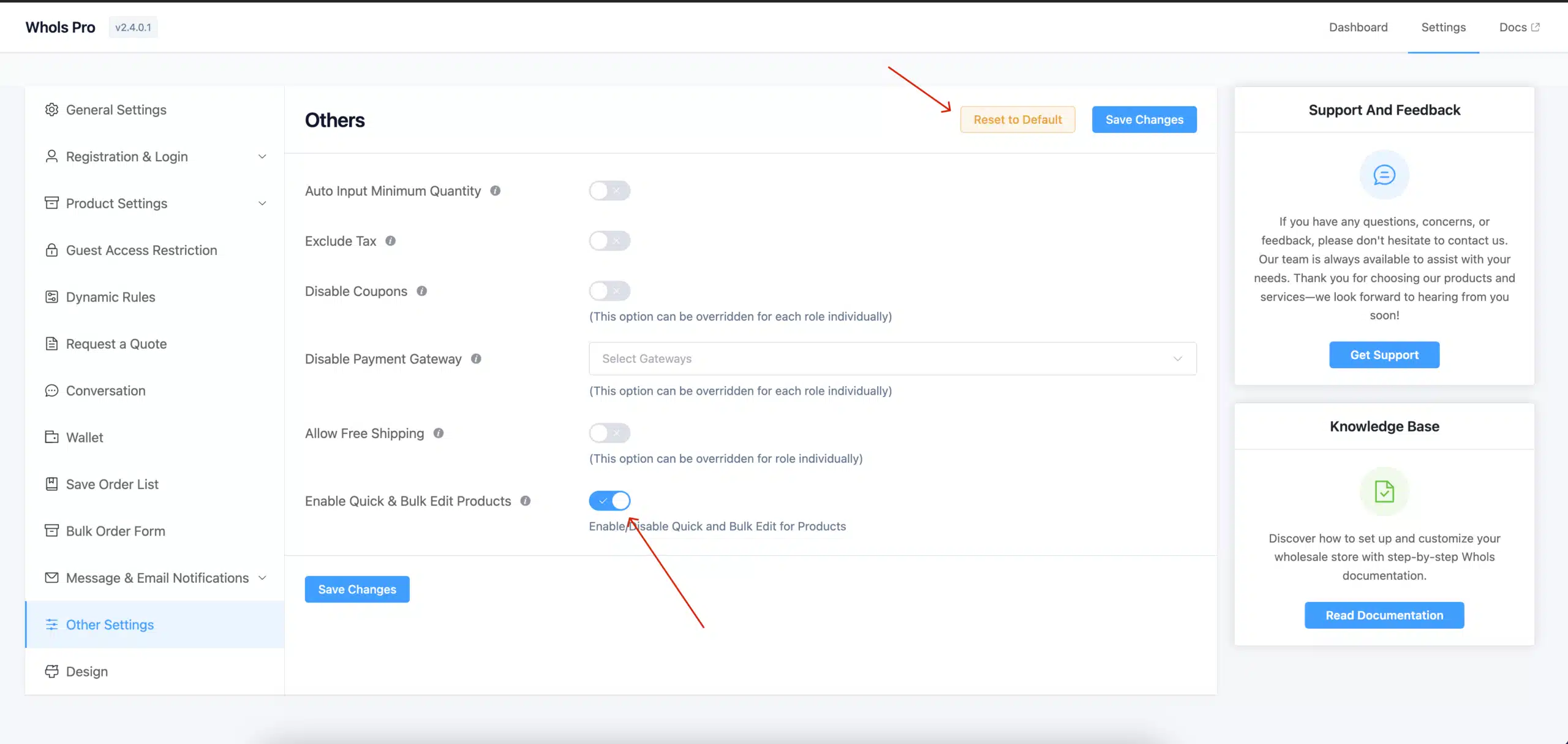
Once enabled, you’ll see wholesale fields available in both Quick Edit and Bulk Edit modes.
Quick Edit
- Go to Products → All Products.
- Hover over a product and click Quick Edit.
- You’ll find new Whols fields:
- Product Visibility
- Wholesale Price
- Wholesale Minimum Quantity
- Edit as needed and click Update.
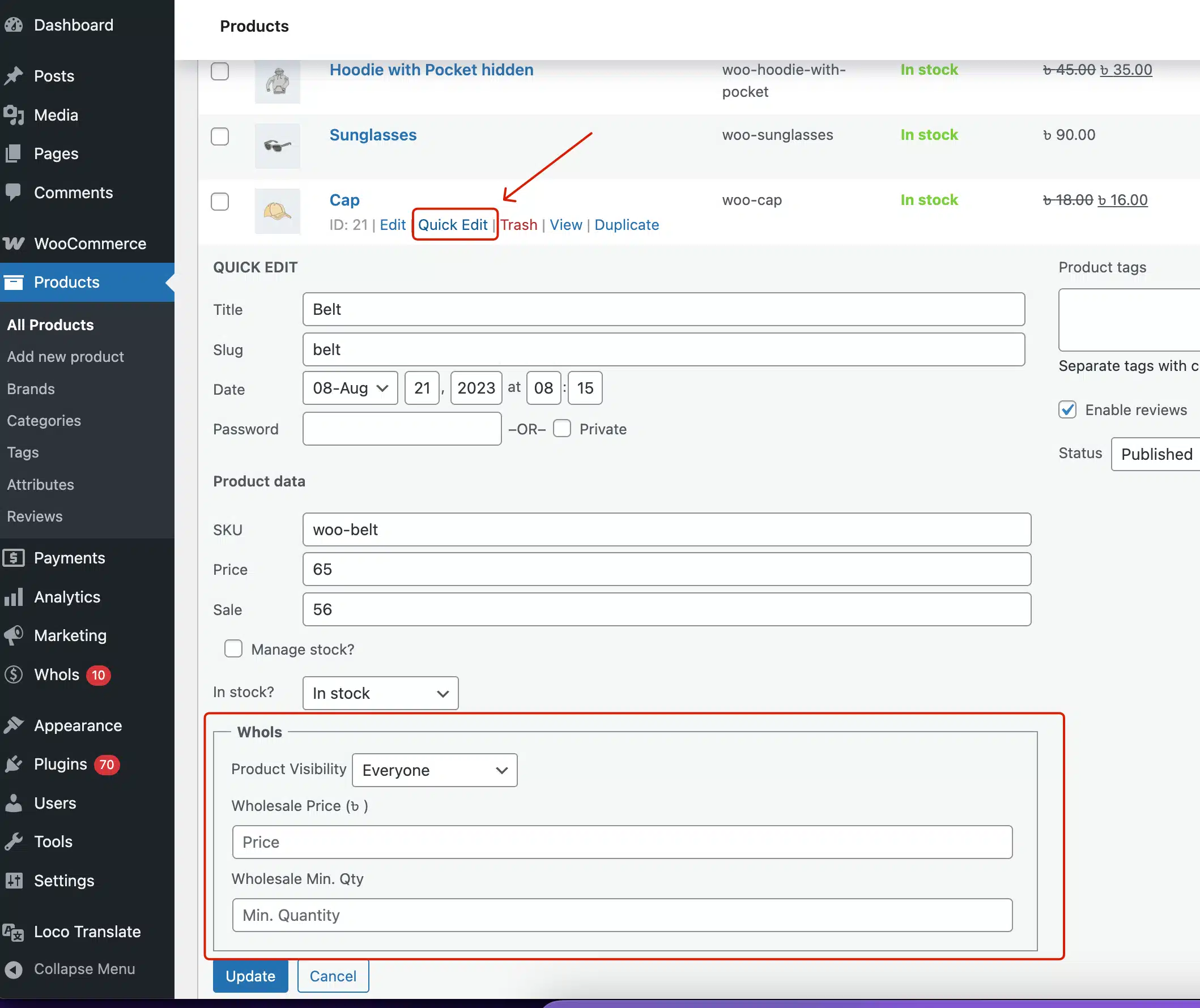
✅ Ideal for quickly updating a single product.
Bulk Edit
- Go to Products → All Products.
- Select multiple products using checkboxes.
- From the Bulk actions dropdown, choose Edit, then click Apply.
- The same Whols fields will appear for mass editing:
- Wholesale Price
- Minimum Quantity
- Visibility
- Update values for all selected products and click Update.
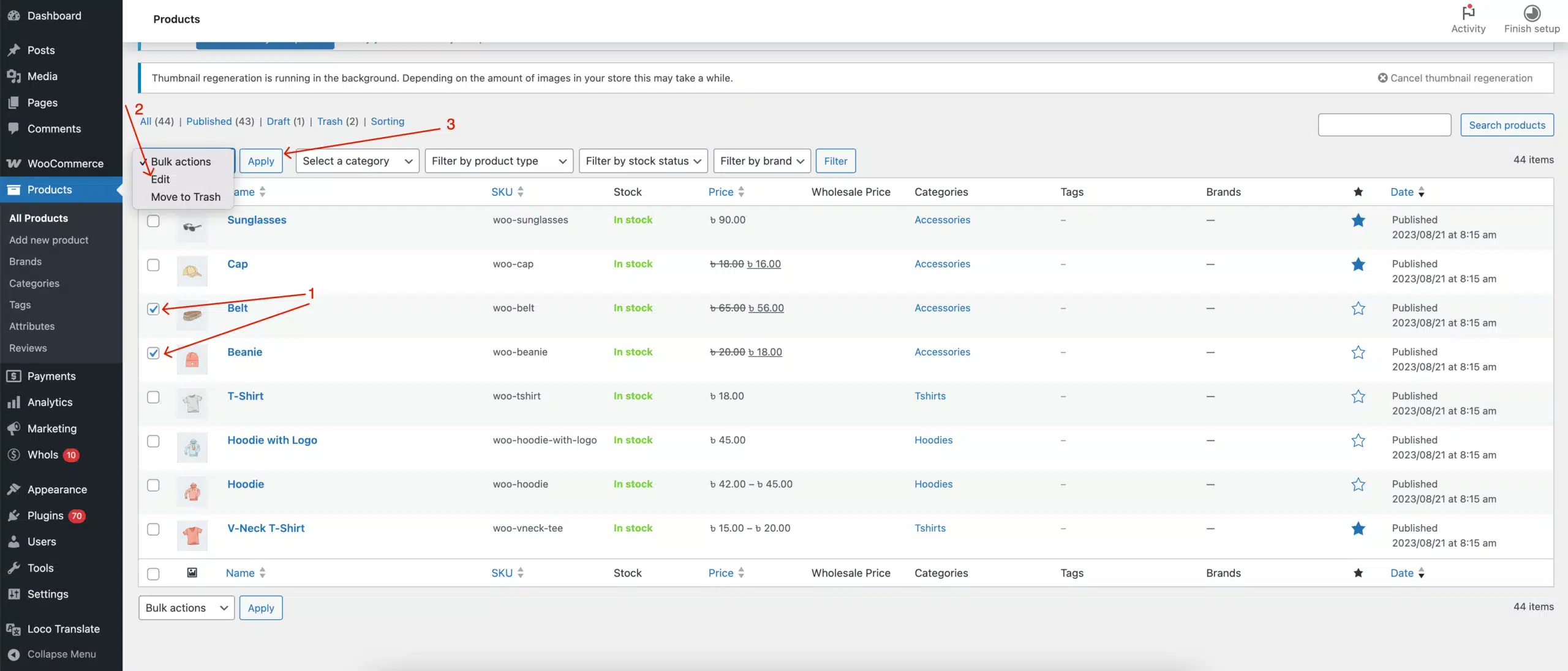
✅ Perfect for applying changes to multiple products at once.
Last updated on November 27, 2025
Was this article helpful?
Powered by Support Genix