Use Scheduling Conditions to activate rules only during specific dates, days of the week, and/or times of the day.
Configuration Overview
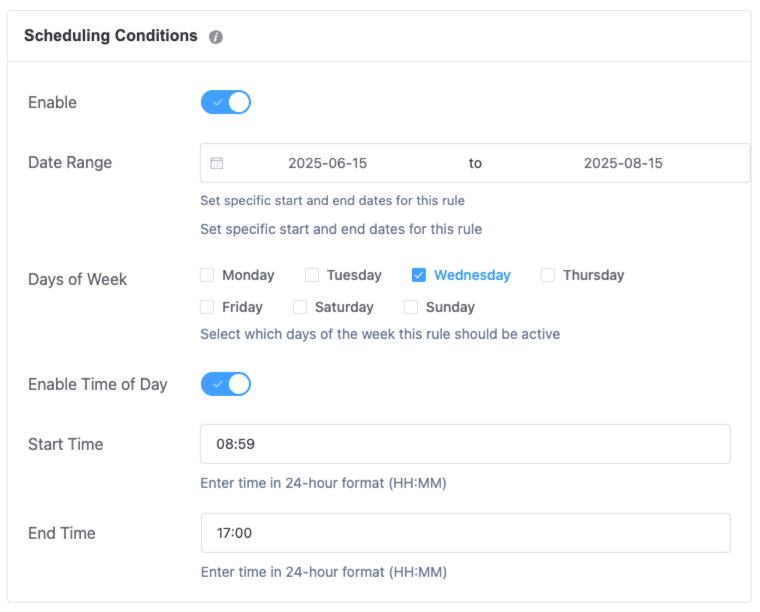
Fields:
- Enable
- Activate scheduling logic for this rule.
- Date Range(optional)
- Define a start and end date for the rule’s validity.
- Leave blank if not restricting by date.
- Days of Week(optional)
- Check the boxes for applicable weekdays (e.g., Wednesday).
- Leave all unchecked if unrestricted.
- Enable Time of Day(optional)
- Toggle ON to enable time filtering.
- Specify Start Time and End Time in HH:MM (24‑hour format).
- Leave disabled to ignore time restrictions.
How It Works
- Any single active scheduling parameter (date, day, or time) is sufficient—the rule will apply if that condition (or combination) is met.
- You can use one, two, or all three fields together for granular control.
- If all optional fields are left blank or disabled, no scheduling restrictions are applied (rule always active unless cut by other conditions).
Real-Life Examples
- Date Range only: Activate rule from June 15 to August 15.
- Day of Week only: Apply rule every Wednesday.
- Time of Day only: Trigger the rule daily between 09:00–17:00.
- Combined: Active Nov 1–Nov 10, only on weekends, from 08:00–12:00.
Flexibility Tips
- Skip fields you don’t need. Use only what matters.
- Best practice: always Enable at least one condition to limit unintended application.
- Combine with other User, Customer History, and Common Conditions to tailor your dynamic rules precisely.