


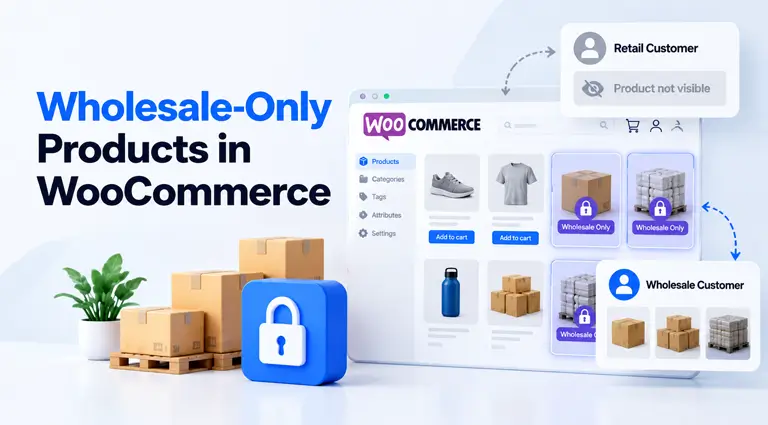
Quick answer: To create wholesale-only products in WooCommerce, install Whols, mark each restricted item as Wholesaler Only in the product editor, and enable the global visibility rule that hides those products from guests and retail customers. Approved wholesale users can then view and purchase the products after logging in, while your public catalog remains separate.
Selling retail and wholesale from one WooCommerce store gets messy fast. Some items are only meant for distributors, dealers, or business buyers. Retail shoppers should never see them.
WooCommerce can’t show products by user role on its own. Its catalog visibility setting applies to everyone. You need a wholesale plugin to hide selected products from retail customers and keep them open to approved buyers.
This guide shows you how to create wholesale-only products in WooCommerce with Whols. You’ll also learn how to test the setup and avoid the leaks that expose trade-only items.
Table of Contents
What Is a Wholesale-Only Product?
A wholesale-only product is a product that only approved wholesale customers can view or buy. Guests and regular retail customers can’t see it.
It is different from a shared product with wholesale pricing:
- Wholesale-only product: Retail shoppers don’t see the product at all.
- Shared product: Retail shoppers see the regular price. Wholesalers see their trade price.
Pricing controls what a buyer pays. Visibility controls whether the buyer can find the product. You need to set both.
If you only want to hide prices, follow our guide on how to hide prices and products from non-wholesale customers.
When Should You Use Wholesale-Only Products?
Use wholesale-only visibility when an item isn’t suitable for your public retail catalog. The goal is to create a focused buying experience for business customers without maintaining a separate WooCommerce website.
Common use cases include:
- B2B-only inventory: Products manufactured or packaged specifically for business buyers
- Distributor-exclusive products: Items limited to approved dealers, resellers, or regional distributors
- Bulk cases and cartons: Larger pack sizes that don’t make sense for individual consumers
- Minimum-order products: Products sold only when buyers meet a required unit or case quantity
- Professional supplies: Equipment, ingredients, or materials intended for qualified commercial users
- Private supplier catalogs: Items available only to approved accounts or contract customers
- White-label products: Unbranded goods that wholesale buyers can resell under their own brand
- Trade sample packs: Product collections created for stockists, retailers, or purchasing teams
- Commercial sizes: Larger formats unavailable through the consumer catalog
Example: A coffee brand sells 250-gram bags to retail customers. It also sells cases of 24 bags to cafés. The single bag stays public. The case becomes a wholesale-only product.
What You Need
Prepare the following before starting:
- An active WooCommerce store
- Whols installed and activated
- At least one wholesale customer role
- A test retail customer account
- A test wholesale customer account
- A staging site or recent backup
- Access to your page, object, and CDN cache controls
Menu names can change slightly between plugin releases. Update the plugin and take a backup before following the steps below.
Choose the Right Setup
Before changing any product settings, decide how your catalog should work. If you operate both sales channels from one website, this guide to creating a B2B and B2C hybrid WooCommerce store can help you plan the broader structure.
| Product type | Retail customers | Wholesale customers | Best use |
|---|---|---|---|
| Shared product | Can view and buy | Can view and buy at the wholesale price | Products sold through both channels |
| Wholesale-only product | Hidden | Visible and purchasable | Cases, trade bundles, and distributor products |
| Retail-only product | Visible | Hidden when the relevant rule is enabled | Consumer bundles or direct-to-consumer exclusives |
| Catalog-only product | Visible without purchasing | Visibility depends on your rules | Products that require an inquiry or quote |
Most hybrid stores need a combination of shared and wholesale-only products. You usually don’t need to duplicate the full product catalog.
Whols- WooCommerce Wholesale Plugin
Manage your WooCommerce online store with more ease and efficiency with this feature-rich plugin.
How to Add Wholesale-Only Products in WooCommerce
The setup has two essential parts. First, mark an individual product as wholesale-only. Second, activate the store-level rule that hides marked products from guests and retail customers.
Step 1: Install and Activate Whols
If Whols isn’t installed:
- Open your WordPress dashboard.
- Go to Plugins > Add New Plugin.
- Search for Whols.
- Click Install Now.
- Click Activate.
After activation, a Whols menu should appear in the dashboard. Open Whols > Settings to review the initial configuration.
You can start with the free version of Whols.
Step 2: Check Price Visibility Mode
Go to:
Whols > Settings > General Settings
Find Wholesale Price Visibility.
Choose one of these modes:
- Testing Mode: Administrators and wholesalers can see wholesale pricing. Use this while building or testing the store.
- Private Mode: Only logged-in wholesale customers can see wholesale pricing. This is usually the best option for a live private wholesale catalog.
- Public Mode: Wholesale prices are visible to everyone.
Avoid Public Mode when you want a private wholesale experience. Product visibility controls may not be available or effective while wholesale pricing is configured for public access.
Save your settings before continuing.
Step 3: Create a Wholesaler Role and Registration
Whols decides who sees wholesale-only products by user role. No wholesaler role means nobody can see them.
- Create a wholesaler role, such as “Wholesale Customer.”
- Add a wholesale registration form so buyers can apply.
- Create one test retail account and one approved wholesale account for later.
Manual approval is safer when access depends on business documents, tax IDs, or reseller certificates.
Step 4: Mark the Product as Wholesaler Only
Inside the Product Data panel:
- Go to Products > All Products and open the product. Or click Add New.
- In the Product Data panel, open the Whols tab.
- Mark the product as a wholesale product.
- Click Publish or Update.
The field description should explain that customers without a wholesale role cannot see the product.
Marking the product identifies it as wholesale-only. You must also enable the global retail-hiding rule in Step 6.
Step 5: Add Wholesale Pricing
Set the product’s wholesale price based on your pricing model. If you need help configuring prices first, follow this guide to setting wholesale prices in WooCommerce.
For a simple product, you may be able to add:
- A fixed wholesale price
- A percentage-based discount
- A minimum product quantity
- Different prices for different wholesale roles
- Quantity-based pricing tiers
Consider the coffee example introduced earlier:
- Retail product: One 250-gram coffee bag at the standard retail price
- Wholesale-only product: A case of 24 bags with a trade price and a minimum order of two cases
The case product stays hidden from general customers. Approved café accounts can log in, find the case listing, and order at the assigned price.
Don’t rely on a lower price alone to define a wholesale-only product. A wholesale price doesn’t automatically prevent retail visitors from discovering the product.
Step 6: Hide Wholesale-Only Products From Visitors and General Customers
Go to:
Whols > Settings > Product Settings > Product Visibility
Open the section for Retailers / General Customers.
Enable:
Hide “Wholesaler Only” Products
This global rule tells Whols to hide marked products from:
- Logged-out visitors
- Guests
- Standard WooCommerce customers
- Other users without an eligible wholesale role
Save your changes. You can also review the Whols product visibility settings if the menu labels in your dashboard differ.
Step 7: Decide What Wholesalers Can See
In the same Product Visibility area, review the settings for wholesalers.
You may find an option such as:
Show only “Wholesaler Only” products
Turn this on only if you want wholesalers to see a focused trade catalog containing wholesale-specific products.
Leave it off if wholesalers should see:
- Wholesale-only products
- Shared retail and wholesale products
- Regular catalog products that also have wholesale pricing
This distinction matters. Enabling the option can hide general products from wholesalers, even when those products should remain part of their buying journey.
Need more control over your wholesale catalog?
Whols allows you manage wholesale roles, pricing rules, buyer registration, approval, and product visibility from your WooCommerce dashboard. Test the setup with one product first, then expand it across your catalog after confirming each customer experience.
How to Update Multiple Products
Marking products one by one works for a small catalog. For a larger one, use WooCommerce bulk editing.
- Go to Products > All Products.
- Filter by category or product type.
- Select the products, choose Edit from Bulk actions, and click Apply.
- Set the Whols wholesale field, then click Update.
Use Quick Edit to fix a single product without opening the full editor. Whols also has a guide to quick and bulk edit for wholesale products.
Test a small batch first.
Tip: Create a normal WooCommerce category such as “Trade Cases.” It groups your wholesale-only products so you can filter and bulk edit them fast. The category organizes your catalog. The visibility comes from marking each product as wholesale.
Test the Customer Experience
Never assume the rule works because it looks correct in the dashboard. Test every relevant user state.
| Test user | Expected result |
|---|---|
| Logged-out visitor | Cannot find the wholesale-only product |
| Logged-in retail customer | Cannot find or purchase the product |
| Approved wholesale customer | Can find and purchase the product |
| Administrator | Can edit and usually preview the product |
| Unapproved wholesale applicant | Cannot access wholesale-only products |
| Wholesale user with the wrong role | Cannot access role-restricted content |
Check these places with the guest and retail accounts:
- Shop page and category pages
- Store search and live search
- Product filters
- Related products, upsells, and cross-sells
- Product blocks and shortcodes
- The wholesale bulk order form
- The direct product URL. Copy the link before you turn on the rule. Open it while logged out.
- Cart and checkout
Then clear all caches: page cache, object cache, CDN cache, and any search or filter index. Use an incognito window for guest tests.
If the direct URL still loads for a guest, treat the product as not hidden. Check for theme overrides, plugin conflicts, stale cache, and conflicting rules.
WooCommerce Hidden vs Role-Based Visibility
WooCommerce has a Catalog visibility setting. It can remove a product from shop and search pages. But it doesn’t grant access by user role.
| Method | Hides from shop listings | Role-based access | Best for |
|---|---|---|---|
| WooCommerce “Hidden” | Yes | No | Removing a product from normal browsing |
| Password-protected product | Partly | No | Sharing one product with people who have the password |
| Custom code | Possible | Possible | Stores with developer time to maintain it |
| Whols visibility rules | Yes | Yes | Retail and wholesale products in one store |
Use “Hidden” when you only want to drop a product from browsing. Use role-based visibility when approved buyers need access, and everyone else doesn’t.
Common Setup Mistakes
Using WooCommerce “Hidden” Instead of Role-Based Rules
“Hidden” removes a product from listings. The product may still open through its direct URL. It also doesn’t unlock the product for wholesalers by role.
Hiding Only the Price
A hidden price doesn’t hide the product. Retail visitors may still see the title, images, description, SKU, stock, and URL. If the whole product is trade-only, restrict the product. Our guide on hiding prices and products covers when hiding the price alone is enough.
Assigning the Wrong Role
A buyer may be logged in but still see nothing. Open the user profile. Check that the account has the wholesale role and is not still waiting for approval.
Enabling Conflicting Rules
Problems can appear when you combine product-level rules, guest restrictions, and retail-only or wholesale-only options. Write down your rules. Start with the store-wide setting, then add exceptions only where you need them.
Forgetting the Cache
Caching can keep showing a product after you hide it. Clear every cache layer after each change. If your cache serves the same pages to everyone, set up cache exclusions for logged-in users.
How to Keep Wholesale-Only Products Out of Search Results
Wholesale-only products shouldn’t show up in public search. Work through this list:
- Exclude them from your XML sitemap. SEO plugins may list products on their own.
- Confirm guests can’t load the page. A guest should get a 404 or a redirect, not the product.
- Don’t link to them from public menus, blog posts, or landing pages.
- Check product feeds and merchant integrations.
- Review old search snippets if you changed a public product to wholesale-only.
Where does noindex fit? It only works if search engines can load the page and read the tag. If guests can’t reach the page, Googlebot can’t either.
So don’t rely on noindex to hide a restricted product. Use it for public pages that should stay out of search.
Access rules control who can open a page. noindex Controls whether a public page can appear in search. They solve different problems.
Keep your public pages crawlable. That includes your wholesale program page and your registration page.
Try the Setup with Whols
Whols manages wholesale roles, pricing, buyer registration, approval, and product visibility from your WooCommerce dashboard.
Start with one wholesale-only product on a staging site. Test the guest, retail, and wholesale views. Then roll it out across your catalog.
Try the free version of Whols or read the Product Visibility Settings doc first.
Frequently Asked Questions
Can WooCommerce hide products from retail customers without a plugin?
No. WooCommerce can hide a product from shop and search listings. But its catalog visibility setting isn’t based on user roles. Use a wholesale plugin for role-based access.
Is hiding the wholesale price enough?
No. A hidden price can leave the product title, images, description, and URL visible. Mark the product as wholesale-only when the whole listing must stay private.
Can I hide retail products from wholesale buyers?
Yes. Whols has an option called Hide “General” Products From Wholesalers. It hides products you did not mark as wholesale. Use it only for trade-only catalogs.
Can I make a whole category wholesale-only?
The documented method marks individual products. Use a category to group them, then bulk edit the group.
Can retail customers open a wholesale-only product by its direct link?
Don’t assume they can’t. Open the product URL in a private window and check. If it loads, review cache, theme, and plugin conflicts, or contact Whols support.
Can I bulk mark products as wholesale-only?
Yes. Open Products > All Products, select the required items, choose Bulk Edit, and set the Whols Product Visibility field to Wholesalers Only. Test a small batch before applying the change across the catalog.
Conclusion
Wholesale-only products need more than a lower price or a hidden listing. You need a role-based rule that separates approved buyers from guests and retail customers.
With Whols, you can mark individual products as Wholesaler Only, activate a global retail-hiding rule, and manage wholesale access from the same store.
Test every customer role, direct URL, search tool, and cache layer before rolling the setup out across your catalog.