


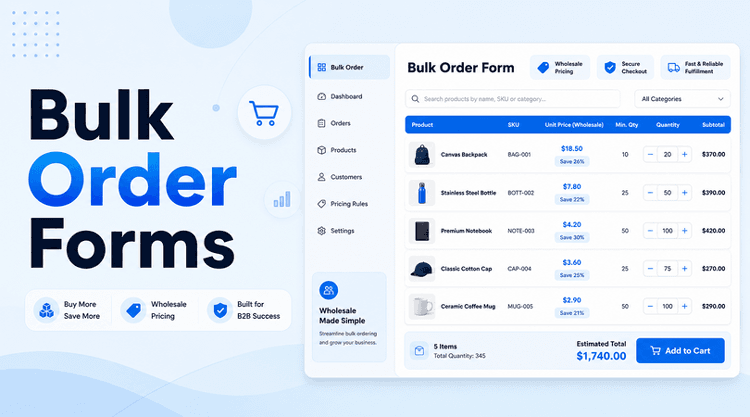
Most WooCommerce stores are set up for retail shoppers. That works fine when customers are browsing, discovering new products, and making one-off purchases. But wholesale buyers are different. They already know what they need. They order regularly, buy in volume, and expect a faster, more professional purchasing process.
The default WooCommerce shop flow — individual product pages, one item at a time — creates real friction for these buyers. If your store serves B2B customers, resellers, distributors, or any buyer who places repeat bulk orders, that friction is costing you sales and customer satisfaction.
A dedicated WooCommerce wholesale order form solves this by giving your buyers a single, efficient page where they can search products, enter quantities across multiple SKUs, handle variations inline, and add everything to cart in one click.
This guide explains what a wholesale order form is, why your B2B buyers need one, and exactly how to build a bulk ordering page in WooCommerce using Whols — including verified setup steps pulled directly from the official Whols documentation.
Quick Answer: A WooCommerce wholesale order form is a dedicated page that lets B2B buyers search products, enter quantities, and add multiple items to cart in one step — without opening individual product pages. Whols helps you build this faster wholesale ordering workflow.
TL;DR: Default WooCommerce is built for retail. Wholesale buyers reorder frequently, buy in bulk, and need speed. A bulk order form replaces slow, page-by-page browsing with a single, efficient ordering interface. Whols – a B2B WooCommerce wholesale plugin, includes a confirmed Bulk Order Form feature (Pro) plus the wholesale pricing, user roles, and visibility controls that make it work end-to-end.
Table of Contents
What Is a WooCommerce Wholesale Order Form?
A WooCommerce wholesale order form (also called a bulk order form or quick order form) is a single-page ordering interface where wholesale customers can browse a product list, select variations, enter quantities, and add multiple items to cart, all without visiting individual product pages.
It is not just a design tweak. It is a fundamentally different purchasing workflow built around how B2B buyers actually buy: fast, focused, and in volume.
Standard WooCommerce shop pages display products in a grid or list. Each product requires its own page visit to add to cart. For a wholesale buyer ordering 15 different SKUs, that means 15 page loads, 15 “Add to Cart” clicks, and a frustrating experience that retail customers might tolerate, but B2B buyers rarely accept.
A wholesale order form brings all of that into one screen:
- A searchable product table
- Quantity fields next to each product
- Variation selectors (size, color, type) inline
- Wholesale pricing displayed clearly
- A single “Add All to Cart” action
Why Wholesale Buyers Need a Faster Ordering Experience
B2B buyers behave very differently from retail shoppers. They already know what they want. They reorder the same products regularly, they buy in larger quantities, and they expect a purchasing process that respects their time.
Here is the typical B2B buyer profile:
- Repeat orders: They come back weekly or monthly for the same products
- Known SKUs: They do not browse for discovery; they come to restock
- Larger quantities: A single order might cover 20 or more line items
- Faster checkout expectations: They expect a professional ordering experience comparable to the trade account systems they use offline
- Role-based pricing: They expect to see their negotiated wholesale price, not the retail rate.
When your WooCommerce store forces these buyers through the same retail product-browsing flow, it creates unnecessary friction and signals that your store was not built for them.
Problems with the Default WooCommerce Flow for Wholesale Stores
The default WooCommerce experience is designed for retail consumers. It creates real problems for B2B stores serving repeat wholesale buyers:
- Too many page loads. Adding 10 products to cart requires visiting 10 individual product pages.
- Slow variation selection. Variable products require opening each product and selecting each attribute separately.
- No product overview. Buyers cannot see their entire catalog at once to plan their order.
- No bulk quantity entry. There is no native way to enter quantities for multiple products in one view.
- Retail-focused layout. Large product images, descriptions, and upsells take up space a wholesale buyer does not need.
- Inconsistent pricing display. Without a dedicated wholesale setup, buyers may see retail prices, causing confusion.
These frictions add up. For a buyer placing 50+ orders per year, a slow ordering process is a real reason to switch suppliers.
How a Bulk Ordering Page Helps B2B Customers
A dedicated wholesale order form resolves each of those friction points:
- Faster product selection: A table or list layout lets buyers scan and select products in seconds
- Inline quantity entry: Quantity fields next to each product mean no page switching
- Variation support: Inline dropdowns handle sizes, colors, and variants without extra clicks
- Wholesale pricing visibility: Buyers see their actual price on the order form page, not the retail rate
- One-step cart add: All selected items go into the cart with a single action
- Better repeat ordering: A clear, familiar layout makes reordering fast and predictable
The net result is a checkout flow designed for a professional buyer rather than a first-time consumer.
Key Features to Look for in a WooCommerce Wholesale Order Form
Not all order forms are equal. When evaluating a wholesale order form solution for WooCommerce, look for these features:
| Feature | Why It Matters |
| Product search | Buyers with large catalogs need to find SKUs fast |
| Table or list layout | Displays multiple products on one screen |
| Quantity fields | Allows entering quantities without a page visit |
| Variation support | Handles size, colour, and type selectors inline |
| Wholesale pricing display | Shows role-based B2B prices, not retail rates |
| Role-based access | Only approved wholesale users see the form |
| Product visibility controls | Hides retail-only or unavailable items |
| Mobile-friendly design | B2B buyers increasingly order from mobile |
| Simple add-to-cart flow | Avoids complicated multi-step processes |
| WooCommerce checkout compatibility | Works with your existing checkout, shipping, and payment setup |
| Save order lists | Let’s repeat buyers reload a saved list with one click |
Role-based pricing and product visibility are especially important — without them, your order form may show the wrong products at the wrong prices to the wrong people.
How Whols Fits into a WooCommerce Wholesale Ordering Setup
Whols is a B2B WooCommerce wholesale plugin that helps store owners build complete wholesale ordering workflows without coding or building a second site.
On the wholesale order form side, Whols includes a confirmed Bulk Order Form feature: it enables users to quickly order multiple products at once — including variable and wholesale products — based on their user role. It is specifically designed for wholesale customers who need to streamline bulk purchasing.
Beyond the order form itself, Whols provides the supporting infrastructure that makes wholesale ordering work properly:
- Wholesale pricing: Set prices globally, per product, per variation, or per category.
- User roles and registration: Create custom wholesale roles, add a registration form with a shortcode, and approve customers manually or automatically.
- Role-based pricing: Different wholesale tiers can see different prices for the same products.
- Product visibility control: Show or hide products and categories for specific wholesale roles
- Wholesale-only categories: Limit entire product categories to approved wholesale buyers only.
- Minimum order quantity: Set minimum quantities per product, with auto-apply so the right quantity is pre-filled when a buyer adds to cart.
- Save Order List: Wholesale customers can save frequently ordered product lists for one-click reordering later.
- Admin can place wholesale orders: Admins can create orders on behalf of wholesale customers directly from the dashboard, useful for phone or email orders.
- Request a Quote: Buyers can request custom pricing for large or non-standard orders.
- Dynamic Rules: Create conditional pricing rules based on cart totals, quantities, product groups, or customer roles.
- Wholesale Order Type: Orders are distinguished as wholesale vs. retail in the management dashboard.
Together, these features cover the full wholesale ordering workflow — from customer registration and pricing to order placement and management.
Note: For exact setting names, shortcodes, and configuration steps for the Bulk Order Form feature, always check the latest Whols documentation as features and UI details are updated regularly.How to Build a WooCommerce Wholesale Order Form with Whols
Here is a practical step-by-step workflow for setting up a wholesale bulk ordering experience using Whols. This covers the complete setup from plugin installation to a working bulk order page.
Step 1: Install and Activate Whols
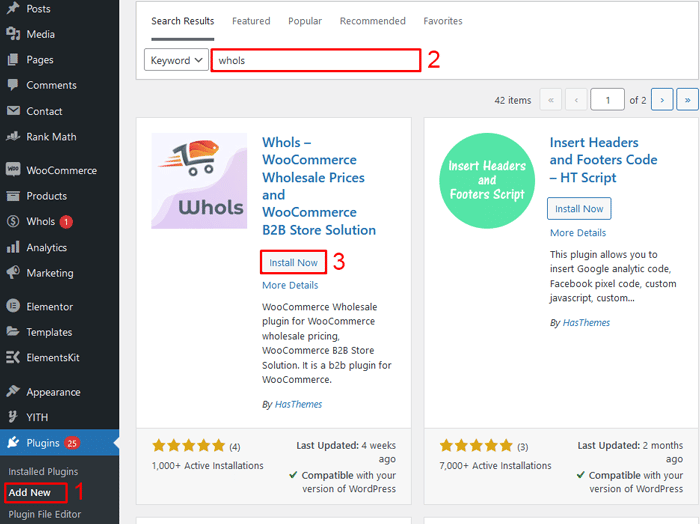
Install Whols from the WordPress plugin directory or upload the Pro version zip file. Activate both WooCommerce and Whols before proceeding.
After activation, a new Whols menu appears in your WordPress dashboard.
Step 2: Set Up Wholesale User Roles
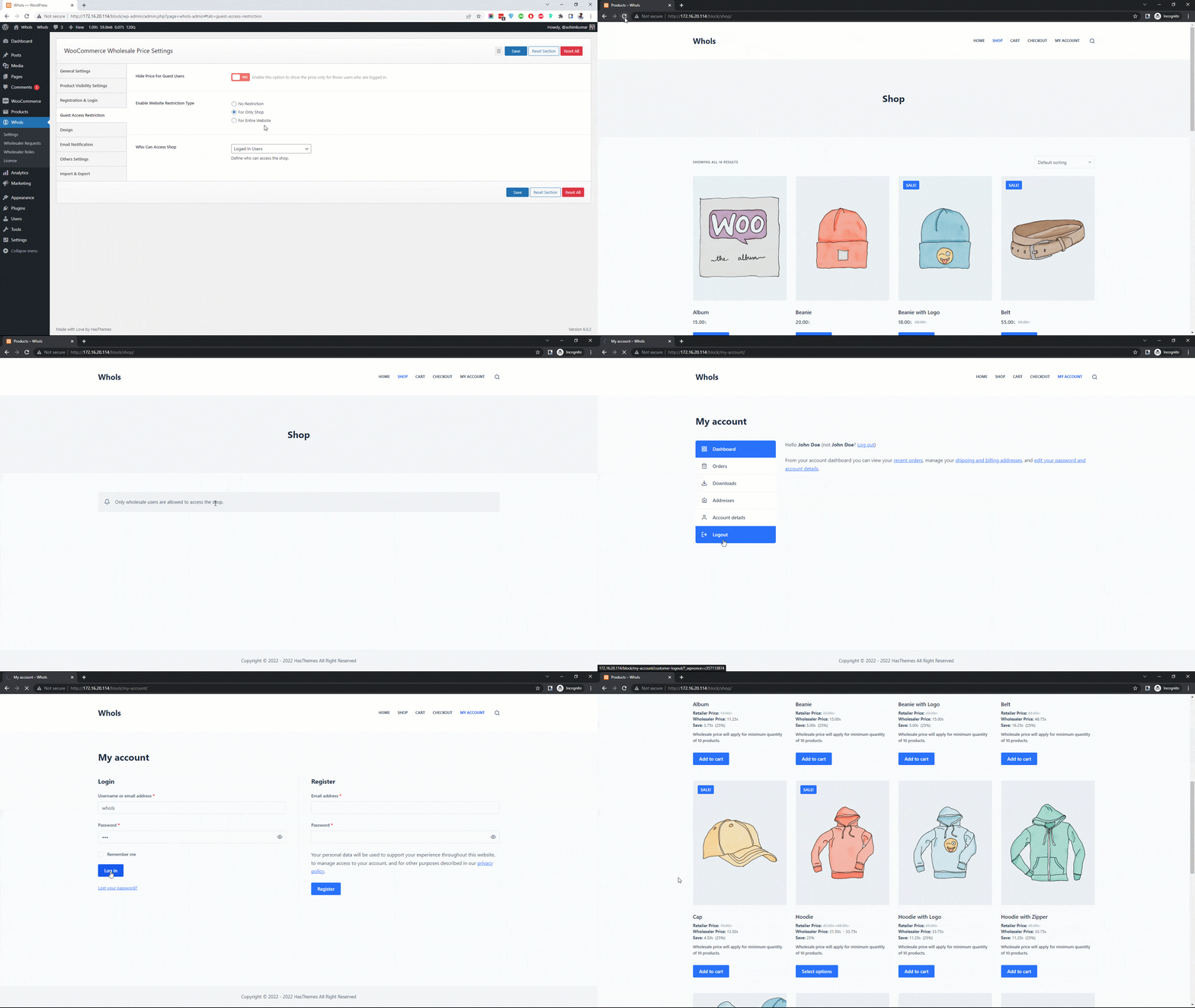
Navigate to Whols > Settings and configure your pricing model. You can use a single default wholesale role or create multiple roles for different buyer tiers (e.g., Retailer, Distributor, Preferred Partner).
Once roles are created, use the shortcode [whols_registration_form] on a page to display the wholesale registration form. Buyers can apply for wholesale access, and you can approve them manually or set automatic approval.
Related guide: How to Set Up a WooCommerce Wholesale Registration Form
Step 3: Configure Wholesale Pricing
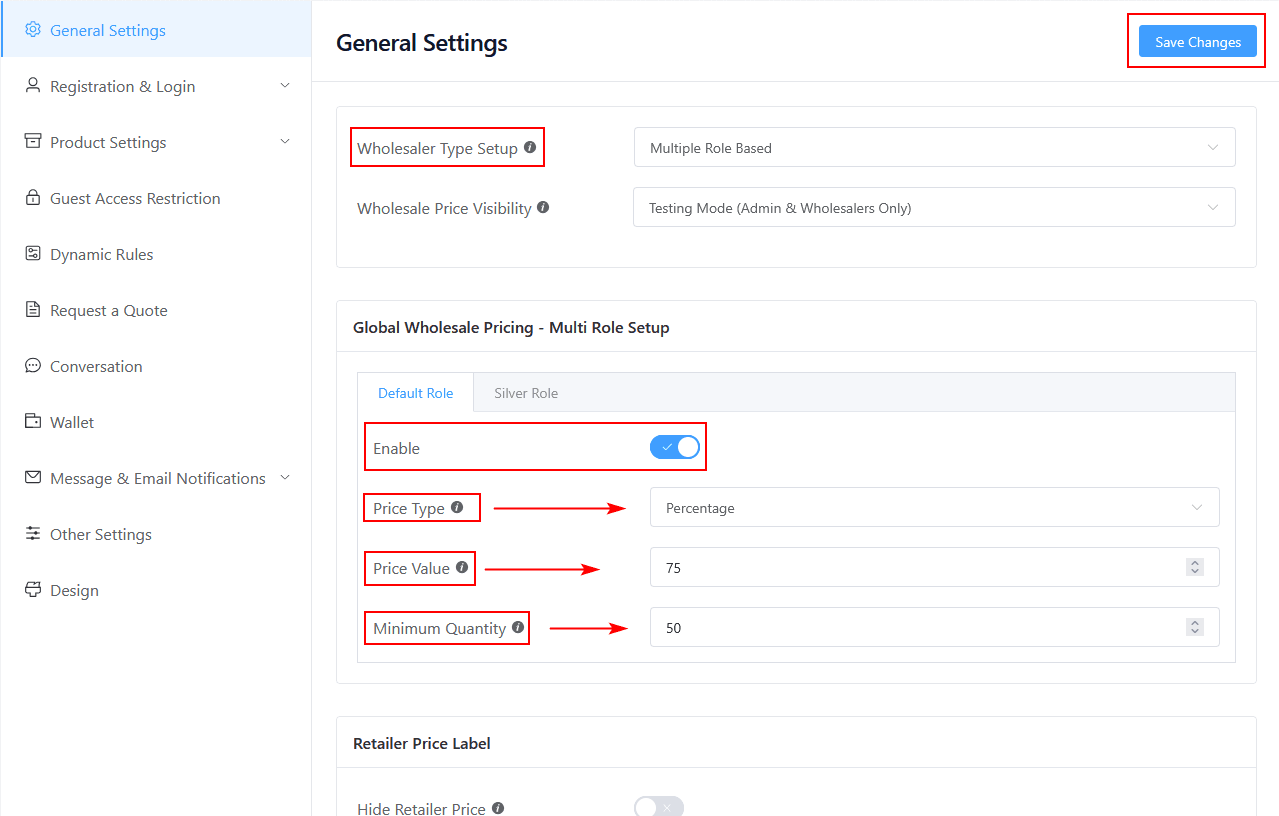
Set your wholesale pricing structure under Whols > General Settings > Price Options. You can apply:
- A global percentage discount off the retail price.
- Category-specific pricing.
- Product-level pricing.
- Role-based pricing tiers for different wholesale groups
Set a minimum order quantity if required. The Auto Apply Minimum Quantity feature will pre-fill the correct quantity when buyers add products to their cart, reducing order errors.
Step 4: Control Product Visibility
Use Whols’ Product Visibility Control to decide which products are visible to which wholesale roles. You can create wholesale-only categories that are invisible to retail customers and guest visitors.
This ensures your bulk order form shows only the products relevant to each buyer — not your entire retail catalog.
Step 5: Enable and Configure the Bulk Order Form
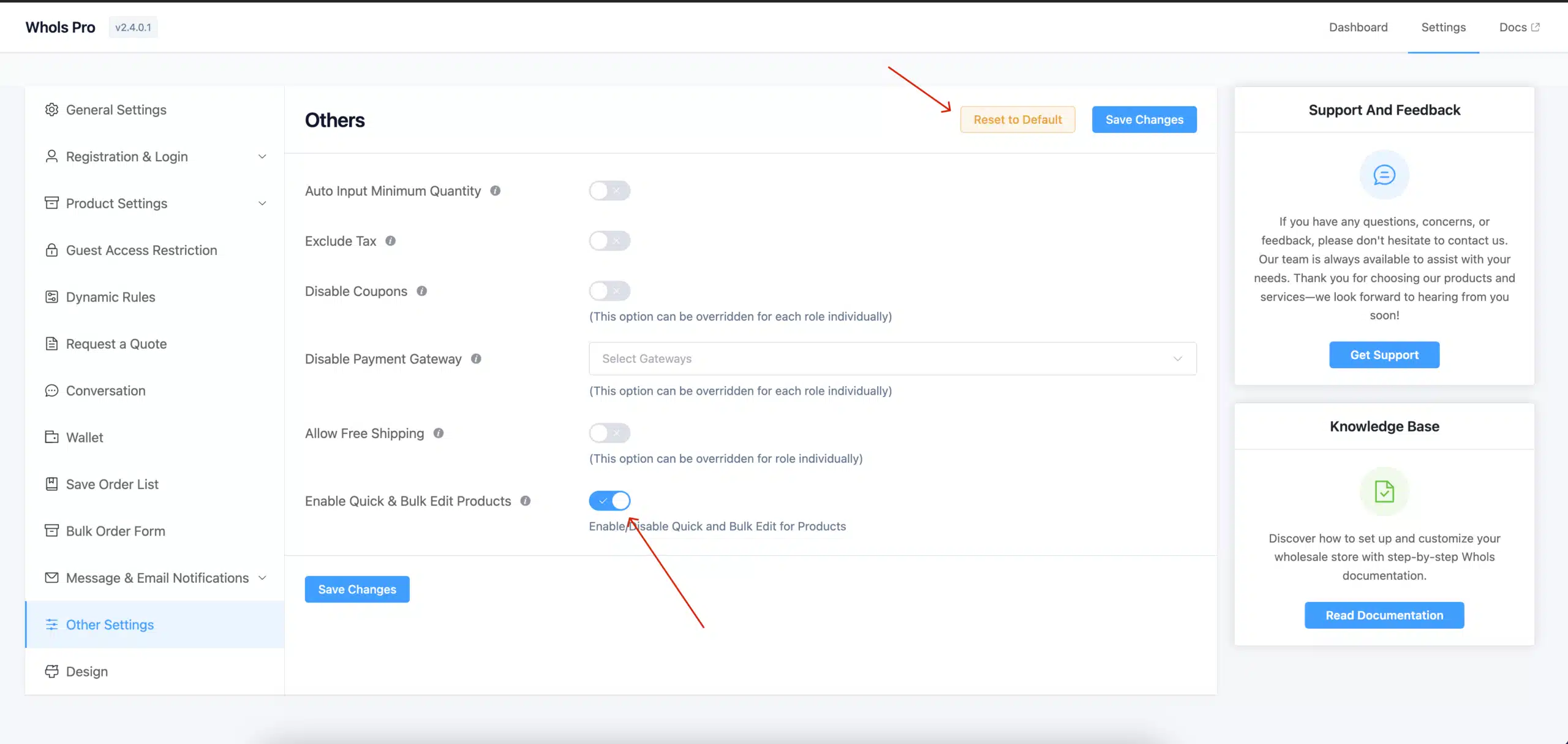
Here you can configure the following options:
- Enable: Toggle the switch to turn the Bulk Order Form on or off
- Shortcode: Copy [whols_bulk_order_form] to place the form on any page or post manually
- Menu Title: Customize the name shown in the customer’s account menu (e.g., “Bulk Order”)
- Search Results Limit: Set the maximum number of products displayed in search results
- Form Title: Customize the title shown at the top of the form
- Redirect After Add to Cart: Choose what happens after buyers add products: stay on page, go to cart, or go to checkout
After configuring, click Save Changes.
There are two ways to make the form available to buyers:
- Automatic account integration — When enabled, the Bulk Order Form is automatically added to the customer’s My Account area as a new menu item.
- Manual shortcode placement — Add [whols_bulk_order_form] to any page or post to display the form wherever you choose.
The form itself includes a category dropdown to filter products, a product search field, inline quantity controls, real-time subtotals, and role-based wholesale pricing applied automatically based on the logged-in user’s role. Variable products are supported with inline variation selectors.
Step 6: Enable Save Order Lists (Pro)
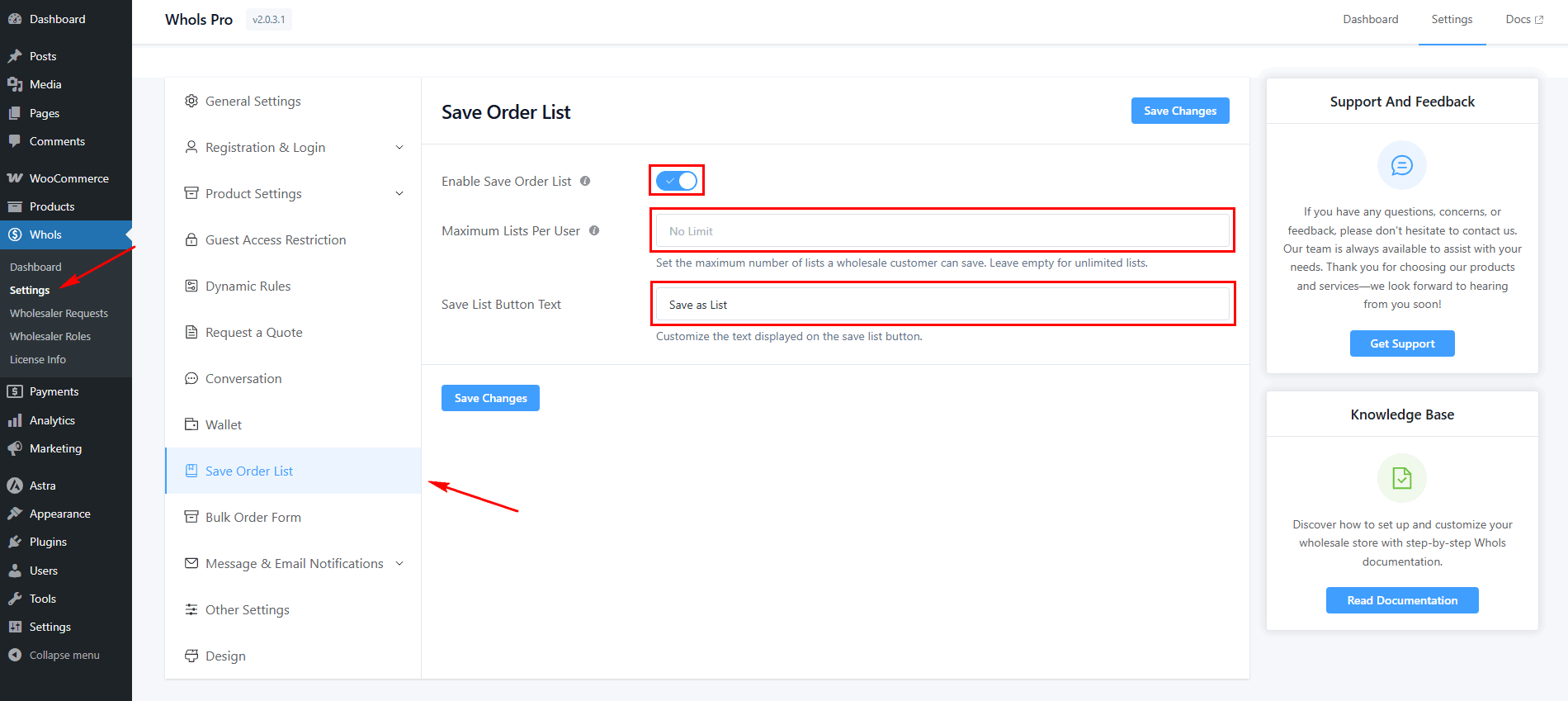
For repeat wholesale buyers, enable the Save Order List feature under Whols > Settings > Save Order List. Once active, buyers can save their current cart as a named list and reload it with a single click for future orders.
This is one of the highest-impact features for wholesale stores with repeat customers.
Step 7: Test as a Wholesale Customer
Create a test account and assign it to your wholesale role. Walk through the full ordering flow:
- Log in as the wholesale buyer
- Visit the bulk order form page
- Confirm correct products and pricing are visible
- Add multiple items to cart
- Proceed through checkout
Test edge cases: product variations, minimum quantities, and the saved order list flow. Make sure retail products that should be hidden are not visible to this role.
Practical Example: A Café Supplies Distributor
Here is a realistic use case for a WooCommerce wholesale order form.
A wholesale distributor sells café supplies, coffee beans, syrups, paper cups, lids, and cleaning products to independent cafés and small restaurant chains.
Without an order form, each café buyer would need to open 8 to 12 individual product pages per order. Many order weekly. The friction is significant.
With Whols configured:
- Each approved café buyer has a wholesale role assigned.
- They log in and land on the dedicated bulk order form page.
- They see their product list — coffee beans, cups, and supplies — with their agreed wholesale prices displayed.
- They enter quantities across 10 product lines, select bag sizes and cup sizes inline, and click “Add to Cart“.
- Regular buyers reload their saved order list and adjust only what has changed that week.
The result is a purchasing experience that mirrors how professional trade accounts work offline, fast, familiar, and frictionless.
Best Practices for Wholesale Order Form Pages
Follow these practices to make your bulk ordering page as effective as possible:
- Keep the layout clean and simple. Remove distractions — large hero images, promotional banners, and upsell blocks have no place on a B2B order form.
- Group products logically. Organize by category, product type, or SKU range so buyers can navigate quickly.
- Show only relevant products. Use product visibility controls to filter out retail items or products not available to that buyer’s role.
- Display wholesale prices clearly. Buyers need to see their price per unit before adding to the cart — not discover it at checkout.
- Make it mobile-friendly. An increasing number of B2B buyers order from mobile devices. Test the form on small screens.
- Set minimum quantity notices. Make minimum order requirements visible on the form page, not only at checkout.
- Add a direct link in the navigation. Don’t bury the order form. Wholesale buyers should reach it in one click from the main menu or My Account page.
- Test with real buyer behavior. Ask a wholesale customer to use the form and note where they hesitate or struggle.
Common Mistakes to Avoid
Even well-intentioned wholesale order forms can fail if these mistakes are made:
- Showing the full retail catalog without filtering. Wholesale buyers should see only the products available to them.
- Hiding wholesale pricing until checkout. Buyers want price confirmation before they commit to quantities.
- Ignoring product variations. If your products come in multiple sizes, colors, or configurations, inline variation selectors are essential.
- Not testing user roles. A wholesale order form that shows retail prices to a wholesale buyer or shows it to an unapproved guest undermines the entire setup.
- Using the same page layout for retail and wholesale buyers. Retail and wholesale buyers have fundamentally different needs. A shared page rarely serves both well.
- Skipping the save order list feature. For repeat buyers, this is one of the most valuable time-saving features available.
- Forgetting mobile usability. A bulk order form that breaks on mobile excludes an entire category of buyers.
- Making checkout too complex. Once items are in the cart, the path to checkout should be as short as possible.
Wholesale Order Form vs. Standard WooCommerce Shop Page
| Aspect | Standard Shop Page | Wholesale Order Form |
| Target user | Retail/new shopper | Repeat B2B buyer |
| Layout | Product grid or list | Table or quick-order list |
| Product discovery | Browsing-first | Search and quantity-entry-first |
| Quantity entry | One product at a time | Multiple products at once |
| Variation selection | On individual product pages | Inline on the order form |
| Pricing shown | Retail price | Role-based wholesale price |
| Add to cart | Per product | All selected items at once |
| Reorder speed | Slow | Fast (especially with saved lists) |
| Best for | First-time buyers, retail customers | Approved wholesale accounts |
The key difference is intent. A shop page is designed for discovery. A wholesale order form is designed for execution.
Is a WooCommerce Wholesale Order Form Right for Your Store?
A bulk ordering page delivers the most value for:
- B2B stores sell to businesses, not individual consumers
- Distributors and manufacturers supplying multiple resellers or trade accounts
- Stores with large product catalogs where buyers need to search and filter efficiently
- Businesses with repeat ordering patterns where the same SKUs are purchased regularly
- Stores using role-based wholesale pricing, where different buyers see different prices
- Store managers handling phone or email orders who need to place orders efficiently on behalf of customers.
If most of your revenue comes from retail customers who browse and discover products, a standard shop page may be sufficient. But if you serve B2B buyers who know what they want and order frequently, a dedicated wholesale order form is not optional — it is expected.
Whols- WooCommerce Wholesale Plugin
Manage your WooCommerce online store with more ease and efficiency with this feature-rich plugin.
Frequently Asked Questions
What is a WooCommerce wholesale order form?
A WooCommerce wholesale order form is a dedicated ordering page that lets approved B2B buyers view multiple products, enter quantities, select variations, and add everything to cart in a single step — without visiting individual product pages. It is designed for speed, repeat purchasing, and bulk quantities rather than product discovery.
Can I create a bulk order form in WooCommerce without code?
Yes. Plugins like Whols include a Bulk Order Form feature that can be enabled from the settings dashboard without any coding. Always check the latest Whols documentation for the exact setup steps, as the plugin is regularly updated.
Why should wholesale customers use an order form instead of the standard shop page?
Wholesale buyers already know what they want. They reorder frequently, buy in larger quantities, and need a faster checkout workflow. A standard shop page requires visiting each product individually — an order form lets them add 10 or 20 products to the cart in one view, saving significant time per order.
Does a wholesale order form work with role-based pricing?
Yes. When properly configured. Whols’ role-based pricing ensures that each wholesale buyer sees their correct price when using the bulk order form. Different buyer tiers (e.g., standard wholesaler, preferred distributor) can see different prices for the same products.
What should I include on a WooCommerce bulk order page?
A well-built bulk order page should include: a product list or table, inline quantity fields, variation selectors, wholesale pricing per unit, a search or filter option for large catalogs, clear minimum quantity notices, and a simple add-to-cart action. Optionally, a saved order list feature dramatically improves the experience for repeat buyers.
Is Whols useful for B2B WooCommerce stores?
Yes. Whols is specifically built for WooCommerce B2B and wholesale stores. It includes wholesale pricing (global, per product, per category, per role), a registration and approval workflow for wholesale customers, a bulk order form, product visibility controls, wholesale-only categories, save order lists, dynamic pricing rules, and more.
Can wholesale order forms improve repeat ordering?
Significantly. The Save Order List feature in Whols (Pro) lets buyers save their current cart as a named list and reload it with one click for future orders. For buyers who restock the same products weekly or monthly, this alone can reduce ordering time from 20 minutes to under two.
Conclusion
The default WooCommerce experience was not designed for wholesale buyers. It was built for retail, and forcing B2B customers through a retail flow costs you time, repeat orders, and customer satisfaction.
A wholesale order form fixes this by putting everything a bulk buyer needs on one page — products, quantities, variations, and prices — and letting them place an order in minutes rather than hours.
Whols gives WooCommerce store owners the tools to build this workflow: a confirmed Bulk Order Form feature, role-based pricing, wholesale user registration, product visibility controls, minimum order quantities, save order lists, and the full B2B infrastructure that makes it all work together.
If you are serious about serving wholesale buyers well, explore what Whols can do for your store. Start with the Whols features page and the documentation to confirm the right setup for your business.