


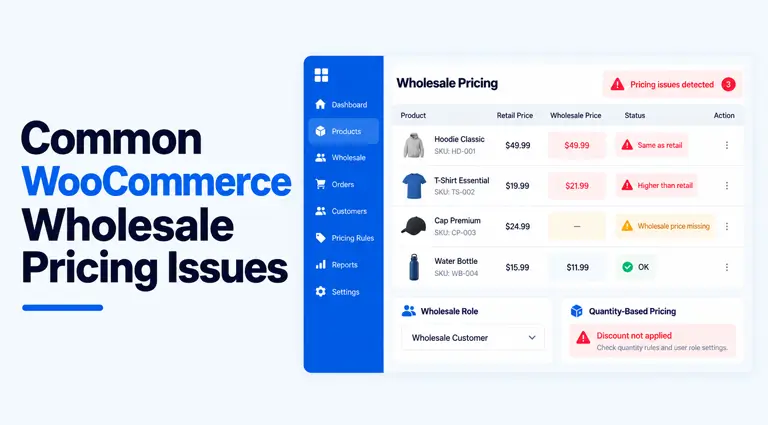
Quick Answer: WooCommerce wholesale pricing problems usually come from the customer’s role, an unmatched pricing rule, an unmet quantity condition, tax display settings, cached pages, or a conflicting plugin. Check the role and applicable pricing rule first, then work through quantity, tax, cache, and conflicts in that order.
Most WooCommerce wholesale problems come down to a short list of common wholesale pricing issues: the customer’s role, an unmatched pricing rule, an unmet quantity condition, or tax and cache display settings.
This guide walks through each one, how to tell them apart, and how to fix them, including where a plugin like Whols fits, and where the problem has nothing to do with your wholesale plugin at all.
Table of Contents
Diagnostic Order Before You Touch Any Settings
Before changing anything, confirm these in order:
- The customer’s WordPress user role
- Whether a pricing rule actually applies to that product, variation, or category
- Whether a minimum quantity or other condition is met
- Tax display settings
- Cache (page cache, object cache, CDN)
- Conflicts with other pricing/discount plugins or custom code
Most “broken” wholesale pricing is a configuration gap in steps 1–3, not a bug.
Why Is My Wholesale Customer Still Seeing the Retail Price?
This is the single most common wholesale pricing complaint. A customer logs in expecting a discount and sees the standard price instead.
Most likely causes:
- The customer isn’t actually logged in when they load the page (session expired, or they’re testing in a tab where they were logged out)
- The account has the wrong WordPress role – a common mistake is assuming a “Customer” account will show wholesale pricing just because the person is a real wholesaler
- The product or category has no wholesale price or rule configured at all
- A guest-visibility setting is hiding wholesale prices, and the account being tested doesn’t actually carry the wholesale role
What to check first:
Open the user’s profile in Users → All Users and confirm the assigned role matches the role your pricing rules target. Don’t use an administrator account as your main pricing test – create a dedicated test account with the exact wholesale role you’re troubleshooting, so the test matches the customer’s actual permissions and pricing conditions.
Fix:
Assign the correct wholesale role to the account, or create a dedicated test user with that exact role and test from a private/incognito window. If you’re using Whols, roles are managed under Whols → Roles, where you can create and assign wholesaler roles independently of WooCommerce’s default Customer role.
See creating and assigning wholesaler roles for the exact steps.
How to verify: Log in as the test user in a private window and load the product page directly. If the wholesale price still doesn’t appear, move to the next section; the role is confirmed correct, so the problem is the rule, not the account.
Why Isn’t My Wholesale Discount Applying?
The role is right, but the discount still doesn’t show up on a specific product or category.
Most likely causes:
- A product has its own wholesale price or rule in addition to a category or global rule, and the two don’t match what you expect
- The rule targets a different role than the one assigned to the test account
- A category-level rule doesn’t reach a product because the product was manually excluded
- The rule genuinely was never created for that product
What to check first:
Open the product in Products → Edit Product and check whether it has its own wholesale price or pricing rule in addition to any category or global rule. Overlapping pricing scopes can cause a product to behave differently from the broader rule you expected.
Fix:
Confirm which pricing scope is actually being applied to that product, and remove or update any unintended product-specific pricing that’s conflicting with the category or global rule.
For role-specific product pricing in Whols, the setup lives in Product Data → Wholesale Pricing — the role-based product pricing guide covers how product, category, and role rules interact.
How to verify: Reload the product page as the test wholesale user with cache disabled (or in an incognito window with a fresh session) and confirm the price changes.
Wholesale Price Not Showing Because a Quantity Condition Wasn’t Met
Quantity-based wholesale pricing is a frequent source of “it worked yesterday, now it doesn’t” tickets.
Most likely causes:
- The minimum quantity for the wholesale price hasn’t been reached in the cart
- The customer added the item before the quantity rule was configured, so the cart is holding a stale line item
- Tiered pricing thresholds don’t line up with how the customer is ordering (e.g., ordering 8 units when the tier starts at 10)
What to check first:
Look at the actual cart quantity against the configured minimum. This is the most overlooked step — a lot of “wholesale pricing not working” tickets are just quantity mismatches.
Fix:
Set or correct the minimum quantity on the product, and if you want customers to avoid hitting this wall unexpectedly, enable an auto-apply setting so the cart quantity adjusts to the minimum automatically instead of just blocking checkout.
Whols supports this — see setting up quantity restrictions for configuration steps.
How to verify: Add exactly the minimum quantity to the cart as the test wholesale user and confirm the price updates at that threshold, not before.
Variable Products Showing the Wrong Wholesale Price
Variable products are one of the more common places wholesale pricing quietly breaks, because store owners often set a price on the parent product and assume every variation inherits it.
Most likely cause: Wholesale pricing wasn’t configured on the individual variation, only on the parent product. With Whols, wholesale pricing for variable products is set at the variation level, so check the specific variation being purchased, not just the parent product’s general tab.
What to check first: Open the product, go to the Variations tab, and check each variation individually for its own wholesale price field.
Fix: Set the wholesale price on each relevant variation. If you’re managing dozens of variations, use bulk or quick edit rather than opening each one manually.
How to verify: Test each variation separately as the wholesale user — a fix on one variation doesn’t guarantee the others are configured correctly too.
Why Does the Wholesale Price Look Different at Checkout Than on the Product Page?
This one usually isn’t a pricing bug at all; it’s a tax display setting being misread as a pricing error.
WooCommerce lets you enter prices with or without tax, and independently choose whether the shop page and the cart/checkout page display tax-inclusive or tax-exclusive totals. If those two display settings don’t match, an exclusive-tax catalog price can legitimately appear higher once tax is added in the cart.
For example, with a hypothetical 9% tax rate, a $50 wholesale price shown on the product page could appear as $54.50 in the cart – nothing is wrong with the wholesale rule; the tax display configuration just doesn’t match customer expectations.
Wholesale customers are also frequently tax-exempt in B2B stores, which adds a second variable: if your plugin has a setting to exclude tax for wholesale roles and it isn’t enabled (or isn’t matched to the customer’s actual tax-exempt status), the wholesale total can look “wrong” even though the base wholesale price is correct.
What to check first: WooCommerce → Settings → Tax, specifically “Prices entered with tax” and the separate shop vs. cart/checkout display settings. Then check whether your wholesale plugin has its own tax-exclusion setting for wholesale roles, and confirm it’s enabled for the right role.
Fix: Align the shop and checkout tax display settings, and turn on any wholesale-specific tax exclusion your plugin offers. Don’t assume every visible price difference is a pricing plugin failure — trace it back to the tax settings first.
Wholesale Prices Disappear or Show Stale Values (Cache Issues)
Wholesale pricing is unusually sensitive to caching because, unlike a normal retail store, the “correct” price legitimately differs by logged-in user. A page cache built to serve one static version of a page to everyone will happily serve a cached retail price to a wholesale customer if it isn’t configured to treat logged-in, role-specific content differently.
Most likely causes:
- A full-page cache plugin or hosting-level cache is caching product/shop pages without excluding logged-in sessions
- A CDN is serving a cached version of a page to all visitors regardless of role
- An old cart or session value is stuck client-side
What to check first: Whether full-page caching applies to logged-in users or user-specific WooCommerce product pages. Wholesale pricing can differ by user role, so cached retail HTML must not be served to a wholesale session.
Fix: Configure your cache to exclude logged-in sessions from full-page caching on shop/product pages, or use role-aware caching if your cache plugin supports it. After changing any pricing configuration, clear the relevant cache — object cache and page cache separately, since clearing one doesn’t always clear the other.
Don’t assume a specific caching plugin is “incompatible” with your wholesale plugin unless you’ve isolated it on staging. Most of the time it’s a configuration gap, not a compatibility bug.
Wholesale Pricing Breaks After a Plugin or Theme Update
If pricing worked yesterday and doesn’t today, and nothing in your own settings changed, suspect an update.
Most likely causes:
- A theme update changed a template file that displays price, bypassing your pricing plugin’s normal output
- Another pricing, discount, or membership plugin updated and now overlaps with your wholesale rules
- A custom PHP snippet that modifies price output stopped matching the new plugin/theme version
What to check first: Whether more than one plugin touches price display or cart calculations. If two plugins or a custom snippet both modify WooCommerce product prices or cart calculations, their rules can overlap and produce unexpected results — especially right after one of them updates.
Fix: On a staging copy (not your live store), disable other pricing/discount plugins one at a time and retest. If the issue disappears when Plugin X is off, that’s your conflict. Do the same test with a default WooCommerce-compatible theme (like Storefront) if you suspect the theme.
If the issue involves Whols Dynamic Rules specifically, use the Dynamic Rules Inspector to see which rule conditions passed or failed.
Never disable plugins on a live production store to test this. Always back up first and use staging.
A Realistic Walkthrough: Wholesale Customer Sees Retail Price
Here’s how to work through a real case methodically, rather than guessing.
- Confirm the account. Log in as the actual customer account (or a copy of it) in a private browser window — not admin.
- Confirm the role. Check Users → All Users and verify the assigned role matches a role your pricing rules target.
- Confirm a rule exists. Open the product and check for a product-level wholesale price, then check the category level if there’s no product-level override.
- Confirm quantity conditions. If pricing is tiered or has a minimum, check the cart quantity against the threshold.
- Confirm the variation, if applicable. For variable products, check the specific variation, not just the parent.
- Clear cache. Clear both page cache and object cache, then reload as the test user.
- Test for a conflict. If the price is still wrong after all of the above, isolate other pricing/discount plugins on staging.
If the problem remains after the role and pricing-rule checks, continue through quantity, variation, cache, and conflict testing rather than changing unrelated settings.
Preventing WooCommerce Wholesale Pricing Issues
- Document which roles map to which pricing rules — six months later, nobody remembers why a role exists
- Avoid running two overlapping pricing or discount plugins where possible
- Keep a dedicated test account per wholesale role and use it, not admin, for QA
- Test simple and variable products separately after any pricing change
- Test the product page, cart, and checkout — a price can be correct in one and wrong in another
- Confirm tax display settings whenever you change tax configuration
- Re-test wholesale pricing after WooCommerce, theme, or plugin updates
- Make pricing changes on staging first for anything beyond a single product edit
- Keep a record of any custom PHP snippets that touch pricing, with a note on what they do
When to Contact Support or a Developer
Escalate rather than keep guessing when:
- Pricing is wrong only on certain page templates, not others
- A conflict persists after a clean staging test with other plugins disabled
- Custom PHP code is modifying prices, and you can’t trace the logic
- Variation pricing behaves inconsistently despite correct per-variation setup
- Server or CDN cache is serving user-specific prices incorrectly, and your cache plugin’s settings don’t fix it
- The issue appeared after a version update, and you can reproduce it consistently
Don’t escalate basic role or quantity misconfigurations – those are usually a five-minute fix once identified.
Conclusion
Wholesale pricing problems in WooCommerce almost always trace back to one of a small number of causes: user role, pricing rule, product/variation setup, quantity conditions, tax or cache display, or a plugin conflict. Working through them in that order – rather than changing random settings – gets you to the actual cause faster.
If you’re using Whols and the diagnosis points to role setup, product/category rule scope, quantity conditions, or tax exclusion, those are configuration settings inside the plugin worth reviewing directly. If the diagnosis points to cache, a theme template, or another plugin, no wholesale plugin change will fix it, the fix belongs in that other layer.
Frequently Asked Questions
Why is my WooCommerce wholesale price not showing?
Most often, because the logged-in account doesn’t have the wholesale role your pricing rule targets, or no wholesale price/rule was ever configured for that specific product or variation.
Why does a wholesale customer still see the retail price?
Check the account’s assigned role first, using a dedicated test account with the exact wholesale role rather than an administrator account, to make sure your test matches what a real customer experiences.
Can cache affect WooCommerce wholesale prices?
Yes. Because wholesale pricing depends on who’s logged in, a page cache that doesn’t exclude logged-in sessions or vary by role can serve a cached retail price to a wholesale customer.
Why is wholesale pricing not working on variable products?
Usually because the wholesale price was set on the parent product but not on the specific variation being purchased. Each variation needs its own price configuration.
Can two pricing or discount plugins conflict in WooCommerce?
Yes. If two plugins or a custom snippet both modify product prices or cart calculations, their rules can overlap and produce unexpected results. Isolate the conflict on staging by disabling plugins one at a time.
Why does the wholesale price change between the product page and checkout?
This is usually a tax display setting mismatch — WooCommerce lets shop pages and cart/checkout pages display tax inclusively or exclusively independently of each other — rather than an actual pricing error.
Does WooCommerce support role-based wholesale pricing natively?
Not out of the box in a dedicated way – WooCommerce core doesn’t ship a wholesale role or role-based pricing UI. That functionality comes from a plugin like Whols, which adds wholesale roles, per-role pricing, and visibility controls on top of WooCommerce