


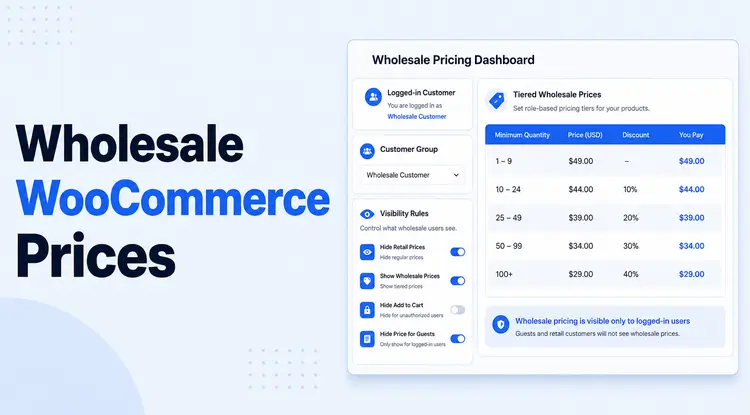
If you run a WooCommerce store that sells to both retail customers and business buyers, showing the same price to everyone is a problem. Your wholesale buyers need different pricing — and they need to trust that their prices are private, consistent, and automatically applied.
Quick Answer: To show different wholesale prices to logged-in customers in WooCommerce, you need to assign users to a wholesale role and use a plugin that maps pricing rules to those roles. When a wholesale customer logs in, the plugin automatically displays their assigned prices instead of the standard retail price. The most straightforward way to do this is with a dedicated B2B wholesale plugin like Whols, which lets you set role-based prices at the product, category, or global level, no code required.
The good news: WooCommerce supports this natively through user roles, and with the right plugin, you can show completely different wholesale prices to logged-in customers without touching a single line of code.
TL;DR: Assign your wholesale buyers to a custom user role, install a B2B wholesale plugin like Whols, and configure prices per role at the product, category, or global level. When those customers log in, they see their pricing automatically. Everyone else sees retail.
Table of Contents
Why Showing Different Prices to Different Customers Matters
Running a hybrid B2B and B2C store is increasingly common. According to Forrester, B2B eCommerce in the US is projected to reach $3 trillion by 2027, and a growing number of those transactions happen through self-service online stores like WooCommerce.
But mixing retail and wholesale pricing on the same product page creates real problems:
- Retail customers see “wholesale” prices and expect them everywhere
- Wholesale buyers feel exposed if their negotiated rates are publicly visible
- You lose control over margin, positioning, and customer segmentation
Login-gated pricing solves this cleanly. Retail visitors see standard prices. Approved wholesale accounts log in and see their agreed rates — automatically, every time.
How WooCommerce Handles User Roles and Pricing
WooCommerce does not have a built-in way to show different prices by user role out of the box. What it does have is a robust user role system inherited from WordPress.
Every registered user on your site has a role: customer, subscriber, administrator, and so on. WooCommerce adds its own customer role for anyone who has placed an order.
To show different prices, you extend this system with a wholesale plugin that:
- Creates one or more custom wholesale user roles (e.g., “Wholesale Customer,” “Gold Wholesaler,” “Reseller”)
- Let’s you assign prices or discounts to each role
- Detects who is logged in and shows the appropriate price
This is the foundation of role-based pricing in WooCommerce — and it’s the most reliable way to manage different wholesale prices at scale.
Step-by-Step: Setting Up Different Wholesale Prices with Whols
Whols is a dedicated B2B WooCommerce wholesale plugin that handles role-based pricing, tiered discounts, wholesale registration, and customer management. Here’s how to set it up from scratch.
Step 1: Install and Activate Whols
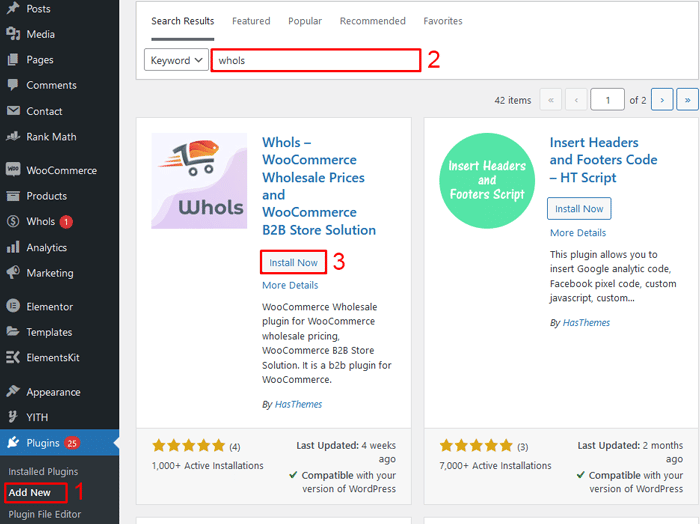
- Go to WordPress Dashboard → Plugins → Add New
- Search for Whols
- Install and activate the plugin
Once activated, a new Whols menu appears in your WordPress sidebar. Whols requires WooCommerce to be active and works with WordPress 5.0+, WooCommerce 4.0+, and PHP 7.4+.
Step 2: Create Your Wholesale User Roles
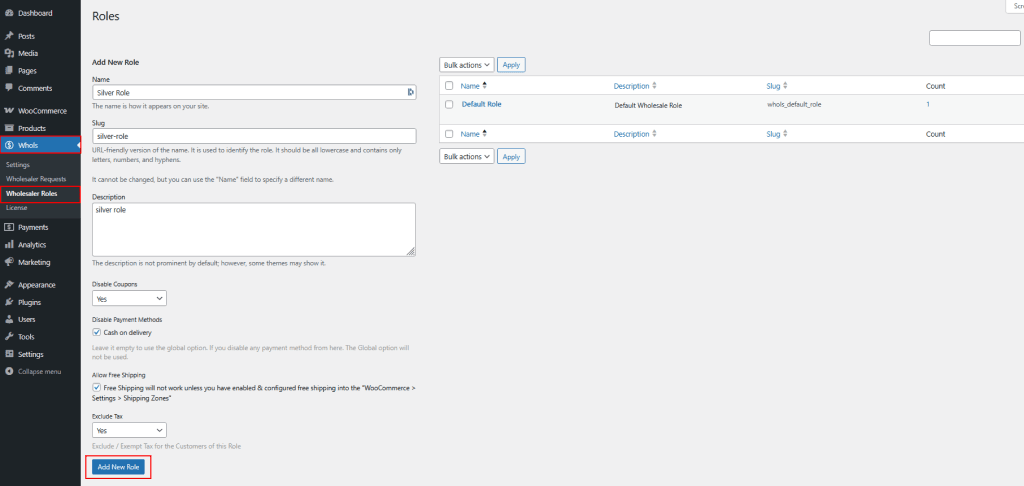
Before you can assign prices, you need at least one wholesale user role.
- Go to Whols → Wholesaler Roles
- Click Add New Role
- Set a name (e.g., “Wholesale Customer”), slug, and description
- Configure role-level settings:
- Disable coupons to prevent wholesale buyers from stacking retail discounts
- Allow free shipping for this role
- Exclude tax for tax-exempt B2B buyers
- Restrict specific payment methods if needed
- Save the role
You can create multiple roles — for example, a “Standard Wholesaler” at 20% off and a “Gold Wholesaler” at 35% off. Each role gets its own pricing rules.
Step 3: Assign Wholesale Roles to Customers
Once a role exists, you assign it to individual users:
- Go to WordPress Dashboard → Users → All Users
- Click Edit on the customer you want to upgrade
- Scroll to the Role field and select your wholesale role
- Click Update User
You can also let customers self-register as wholesale buyers using Whols’s built-in wholesale registration form, with new signups landing in Whols → Wholesaler Requests for approval.
Step 4: Set Prices at the Category Level
- Go to Products → Categories
- Click Edit on any category
- On the category edit screen, you’ll find pricing fields for each wholesaler role — enter either a percentage discount off the regular price or a fixed price per unit
- Save the category
There is no separate “Whols Pricing” tab here — the fields sit directly on the standard WooCommerce category edit page. Every product in that category will show the discounted price once a wholesale role logs in.
Step 5: Set Prices at the Product Level (Optional Override)
For products that need specific pricing beyond the category default:
- Go to Products → Edit Product
- Open the Product Data → General tab
- Enter the wholesale price and minimum order quantity for each role directly in that tab
- For variable products, go to the Variations tab and set per-role pricing on each variation
Product-level prices always override category-level settings for that specific item.
Step 6: Configure Registration and Approval (Optional)
- Go to Whols → Settings → Registration & Login.
- Choose the page hosting your wholesale registration form, set a default role for new signups, and decide between auto-approval or manual review.
- Manually review pending applications under Whols → Wholesaler Requests, assigning a role before approving.
Step 7: Test the Setup
- Create a test user account and assign it your wholesale role
- Log in as that user in an incognito window (never test as an administrator — admins can see admin-level pricing that doesn’t reflect the real customer experience)
- Browse your product catalog and confirm the correct prices appear
- Add items to the cart and verify prices carry through to checkout
Setting Up Tiered Pricing for Different Order Quantities
Beyond role-based pricing, you may want to reward customers who buy in larger quantities. Tiered pricing (also called quantity-based pricing) gives bigger discounts as order volumes increase.
Example setup for a “Wholesale Customer” role:
| Quantity | Price per Unit |
| 1–49 units | $45.00 |
| 50–99 units | $40.00 |
| 100+ units | $35.00 |
With Whols Pro, you can define separate pricing tiers for each wholesale role. This means your Gold Wholesalers might see deeper discounts at each tier than your Standard Wholesalers — all automatically, based on who is logged in and how many units they’re ordering.
This is one of the clearest ways to show genuinely different wholesale prices to different logged-in customers at the same time.
Using Dynamic Rules for Advanced Wholesale Pricing
Whols also includes a Dynamic Rules engine for pricing scenarios that go beyond simple role discounts. You access this at Dashboard → Whols → Settings → Dynamic Rules.
With dynamic rules, you can configure:
- Cart-total discounts — e.g., 10% off for any B2B order over $500
- Role + quantity combinations — e.g., Gold Wholesalers buying 50+ units get an extra 5% discount
- BOGO offers — e.g., buy 2 of Product A, get 1 free
- Regional pricing — e.g., 5% handling fee for international wholesale orders
- Payment method control — restrict or allow specific payment methods per role
These rules stack on top of your base wholesale prices, giving you the flexibility to run promotions and seasonal pricing for B2B customers without disrupting your retail store.
For a full walkthrough of dynamic rules, see the Whols dynamic pricing documentation.
Should I Hide Prices from Non-Logged-In Visitors?
This is a practical question many WooCommerce store owners face. There are two main approaches:
Option A: Show retail prices to everyone, wholesale prices to logged-in members
This is the most common setup for hybrid B2C/B2B stores. Retail customers see standard prices. Wholesale customers log in and see their rates. No one is confused or locked out.
Option B: Hide all prices until a visitor logs in
This works well for wholesale-only or trade-only stores. Visitors see a “Log in to see pricing” message instead of a price. This protects your wholesale rates entirely and signals a more exclusive, account-based relationship.
With Whols, you can configure price visibility by role — including hiding prices from guests entirely. This is managed under Dashboard → Whols → Settings → Guest Access Restriction.
The right approach depends on your store model. If you sell to both retail and wholesale, Option A is usually cleaner. If you’re purely B2B, Option B provides stronger price protection.
Common Mistakes to Avoid
Even with a good plugin, a few setup errors are easy to make:
- Assigning the wrong user role. If a customer isn’t seeing their wholesale prices, the first thing to check is their user role. Go to Users → All Users, find the customer, and confirm their role matches your wholesale role exactly.
- Forgetting to set prices for new product categories: If you add a new product category without configuring Whols pricing for it, those products will show retail prices even to wholesale customers. Make it a habit to configure pricing at the category level for every new category you create.
- Not testing with a real wholesale account, Admin users see admin prices. Always test pricing by logging in as a customer with the wholesale role, not as an administrator.
- Setting prices at the product level without category-level defaults. If you rely entirely on product-level pricing, you’ll need to manually update every product when prices change. Category-level pricing scales far better and is easier to manage.
- Allowing wholesale customers to use retail coupons: If you don’t disable coupon use at the role level, wholesale buyers can stack coupon discounts on top of their already-reduced wholesale prices. Whols lets you disable coupons per role to prevent this.
A Real-World Use Case
Imagine you run a WooCommerce store selling cleaning supplies to both retail customers and commercial cleaning businesses.
Your retail customers browse your site and see standard prices — $12.99 for a bulk pack of microfibre cloths.
Your commercial accounts have been assigned the “Trade Buyer” role in Whols. When they log in, they see $8.50 for the same pack — their negotiated rate, applied automatically.
You’ve also set up a tiered rule: orders of 200+ units get an additional 8% off cart total. A cleaning company ordering 500 units at checkout sees their discount applied in real time, without any manual intervention from you.
No separate store. No manual price adjustments. No risk of retail customers seeing trade rates.
How This Compares to Other WooCommerce Wholesale Plugins
Whols is not the only option for role-based wholesale pricing in WooCommerce. Here’s how the main alternatives compare on core functionality:
| Feature | Whols | Wholesale Suite | WholesaleX | B2BKing |
| Role-based pricing | ✓ | ✓ | ✓ | ✓ |
| Tiered quantity pricing | ✓ | ✓ (Pro) | ✓ | ✓ |
| Dynamic rules engine | ✓ | Limited | ✓ | ✓ |
| Wholesale registration form | ✓ | ✓ | ✓ | ✓ |
| Guest price hiding | ✓ | ✓ | ✓ | ✓ |
| Category-level pricing | ✓ | ✓ | ✓ | ✓ |
| BOGO rules | ✓ | ✗ | Limited | ✓ |
| Starting price (annual) | $79/yr | $148.50/yr | $89/yr | Higher |
For most WooCommerce store owners running a straightforward B2B or hybrid B2B/B2C operation, Whols offers a strong balance of features and price. If you’re looking for a place to start, Whols has a free version on WordPress.org you can try before upgrading to Pro.
Quick Reference: Wholesale Pricing Setup Checklist
Use this before you launch your wholesale pricing setup:
- Whols plugin installed and activated
- At least one wholesale user role created
- Coupon restrictions configured per role
- Category-level prices set for all product categories
- Product-level overrides set for any exceptions
- Wholesale registration form live on a dedicated page (optional)
- Guest price visibility configured (show or hide)
- Pricing tested from a customer account with the wholesale role
- Dynamic rules reviewed for promotions or tiered discounts (optional)
Frequently Asked Questions
What does “different wholesale prices for logged-in customers” mean in WooCommerce?
It means that a customer who logs in with a wholesale account sees a different price on the same product than a retail visitor. The price they see is tied to their user role, not a coupon or discount code. When they add items to the cart, those prices carry through to checkout automatically. This is the core mechanic behind role-based B2B pricing in WooCommerce.
How do I show different wholesale prices to logged-in customers in WooCommerce?
A: Assign your wholesale customers to a custom user role, then use a wholesale plugin like Whols to set prices for that role at the category or product level. When those customers log in, WooCommerce shows their assigned prices automatically.
Do I need to code anything to show wholesale prices to logged-in customers?
No. A dedicated wholesale plugin like Whols handles the entire pricing logic without any custom code. You configure prices through the WooCommerce and Whols admin panels, and the plugin does the rest. The only exception would be highly custom scenarios, such as integrating pricing from an external ERP, which may require developer work.
Can I show different wholesale prices to multiple groups of customers?
Yes. Whols supports multiple wholesale roles, each with its own pricing rules. For example, you could have a “Standard Wholesaler” role with 20% off, a “Gold Wholesaler” role with 35% off, and a “Distributor” role with fixed negotiated prices per product. Each group sees only its own pricing when logged in.
What happens if a wholesale customer is not logged in?
It depends on your configuration. In a hybrid B2C/B2B setup, they will see standard retail prices. If you’ve configured Whols to hide prices from non-logged-in users, they’ll see a message prompting them to log in. You can also restrict access to entire product categories for guests.
Can wholesale customers still use discount coupons on top of their wholesale prices?
By default, in WooCommerce, coupons work for all customers. Whols lets you disable coupon usage per wholesale role, so you can prevent wholesale buyers from stacking retail promotions on top of their already-discounted prices. This setting is found under each wholesale role’s configuration in the Whols settings panel.
How do I automatically approve or manually review wholesale account applications?
When you set up a wholesale registration form with Whols, you can choose between auto-approval (customers are assigned their role immediately after registration) and manual approval (you review each application and approve or reject it). Manual approval is recommended for higher-value wholesale accounts where you want to vet buyers before giving them access to trade pricing.
Does Whols support tiered pricing based on order quantity?
Yes. With Whols Pro, you can set quantity-based pricing tiers at both the product and category level, and define separate tiers per wholesale role. This means a Gold Wholesaler might unlock a deeper discount at 100 units than a Standard Wholesaler would at the same quantity.
Conclusion
Showing different wholesale prices to logged-in customers in WooCommerce is a solved problem. With a clear understanding of user roles and a plugin built for B2B wholesale, you can set up role-based pricing across your entire catalog in an afternoon.
The key is structure: Create your wholesale roles, configure pricing at the category level, test from a real wholesale account, and layer in tiered or dynamic rules as your B2B operation grows.
If you’re ready to set up wholesale pricing on your WooCommerce store, Whols is a practical starting point. The free version covers role-based pricing for a single wholesale role, and the Pro version unlocks tiered pricing, dynamic rules, and advanced registration workflows.