


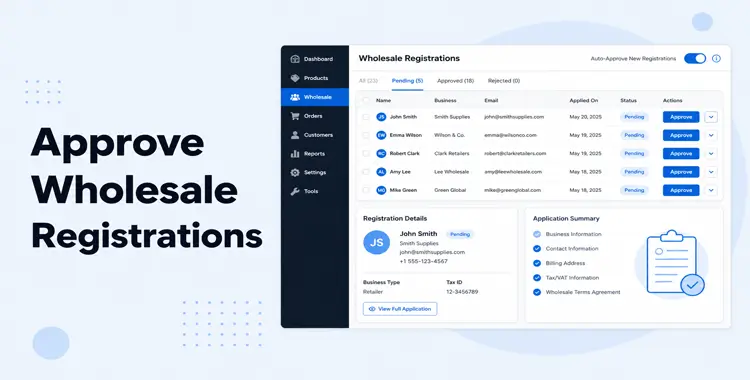
If you want to auto-approve WooCommerce wholesale registrations, you’re in the right place.
When a buyer submits a wholesale registration on your WooCommerce store, what happens next?
Do they get instant access to your B2B prices, or do you review them first?
That one decision shapes your entire wholesale onboarding experience. And it directly affects your store’s security, conversion rate, and how you manage B2B relationships at scale.
With Whols – B2B WooCommerce Wholesale Solution, you can set up either workflow in just a few clicks.
TL;DR:
To auto approve WooCommerce Wholesale Registrations, go to Whols → Settings → General Settings, check “Enable Auto Approve,” and save. For manual approval, leave that box unchecked and review applicants from WordPress Admin → Users.
Table of Contents
Why the Approval Decision Matters More Than the Form
Your registration form collects information. Your approval method controls who acts on it and how fast. That single setting shapes your wholesale program’s security, buyer experience, and the quality of your B2B customer base.
The moment a buyer submits a wholesale registration, one of two things happens: they get instant access to your B2B pricing, or they wait. That waiting period or the absence of one is the approval decision. And it directly affects three things:
- Security, who can see and act on your wholesale prices
- Buyer experience, how quickly a qualified applicant becomes a paying customer
- Customer quality, whether your wholesale accounts are verified businesses or opportunistic retail buyers
Choosing the wrong method for your business model creates real problems. Auto-approving on a high-value product catalog without proper form fields attracts low-quality registrants and pricing leakage. Manual approval on a low-risk open distributor program adds unnecessary friction and slows down revenue.
If you have not yet set up your wholesale registration form and shortcode, start here first: How to Set Up a WooCommerce Wholesale Registration Form
Auto-Approve vs. Manual Approval: Full Comparison
Auto-approve and manual approval are not better or worse — they suit different business models. The right choice depends on your product risk level, buyer verification needs, and registration volume.
| Factor | Auto-Approve | Manual Approval |
| Buyer access speed | Instant, on form submission | Pending until admin review |
| Admin workload | None — fully automated | Must review each application |
| Fraud risk | Higher — no human vetting | Lower — admin screens each applicant |
| Buyer experience | Frictionless, immediate | Adds a waiting step |
| Best for | Open B2B programs, low-risk products, high volume | Vetted buyers, licensed industries, exclusive accounts |
| Typical use case | Retail resellers, open distributor networks | Restaurants, trade-only stores, licensed buyers |
| Pricing exposure risk | Moderate to high (depends on form fields) | Low |
| Scalability | Highly scalable — no bottleneck | Can slow down at high registration volume |
| Revenue speed | Faster — no delay between application and first order | Slower — depends on your review turnaround |
Most new wholesale programs start with manual approval for tighter control, then switch to auto-approve once their registration form fields are strong enough to pre-qualify applicants effectively.
Who Should Use Auto-Approve?
Auto-approve works best when you have a low-risk product catalog, an open wholesale program, or enough form fields to pre-qualify buyers without human review.
Choose auto-approve if:
- Your products do not require a business license or resale certificate to purchase
- You sell to a broad category of buyers (e.g., anyone who self-identifies as a retailer)
- Your wholesale discount level is modest — a pricing leak does not meaningfully damage your margins
- Your registration form already collects company name, business email, and tax ID to screen out clearly fake accounts
- You receive high registration volumes and manual review is creating a bottleneck
Auto-approve is not a zero-risk option. Without manual vetting, some registrants will be retail buyers attempting to access wholesale pricing. The mitigation is a well-designed registration form that creates enough friction to deter opportunistic signups — without creating so much friction that qualified buyers abandon it.
Who Should Use Manual Approval?
Manual approval is the right default for any wholesale program where pricing access carries meaningful risk — either to your margins, your brand relationships, or legal compliance.
Choose manual approval if:
- Your products require a resale certificate, trade license, or professional credential
- Your wholesale prices represent a significant discount (30–60%) that would be damaging if accessed by retail buyers
- You want to build vetted, relationship-based wholesale accounts rather than anonymous bulk buyers
- You operate in a regulated industry (food service, healthcare equipment, building materials, alcohol)
- You are launching a new wholesale program and want to learn who your buyers are before opening access
The tradeoff is speed. Every day a qualified applicant waits is a day they might order from a competitor. Set a strict internal review SLA; 24 hours is the standard, and communicate that timeline clearly on your registration page and in the post-submission message.
How to Enable Auto-Approve in Whols
To enable auto-approve, check a single setting in General Settings. Every new registrant from that point forward receives instant wholesale access on form submission.
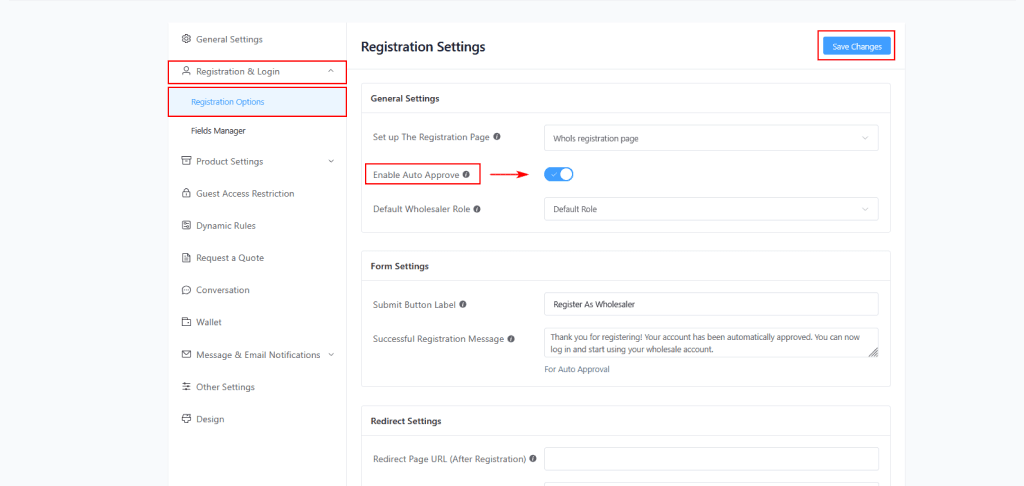
- Log in to your WordPress Admin dashboard
- Go to Whols in the left sidebar
- Click Settings, then open the General Settings tab
- Find the “Enable Auto Approve” checkbox
- Check the box to enable automatic approval
- Click Save Changes
From this point on, every new wholesale registrant receives immediate access the moment they submit the form. No admin action is required.
After enabling auto-approve:
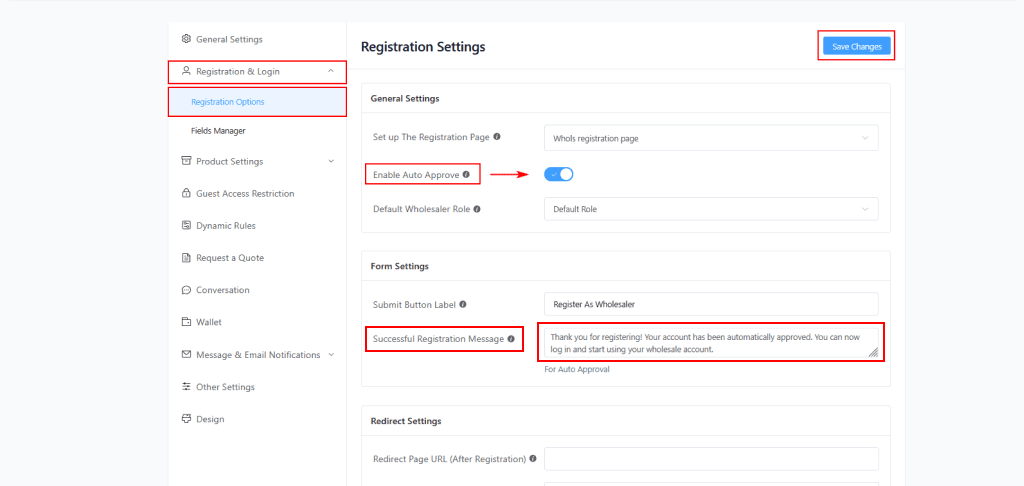
After you auto approve WooCommerce wholesale registrations, you can customize what buyers see immediately after registering.
- Customize your “Registration Successful Message” (displayed immediately after the form is submitted)
- Set a post-registration redirect URL if you want to send approved buyers directly to your wholesale catalog
- Review your form fields to ensure they create enough qualification friction for your risk level
A clear message reduces support tickets and sets the right first impression.
Learn More: Customizing Your Post-Registration Messages.
How to Enable Manual Approval in Whols
Manual approval is the default state in Whols. Leave the “Enable Auto Approve” checkbox unchecked, and every new registrant will wait in a pending state until you review them.
- Go to Whols → Settings → General Settings
- Confirm the “Enable Auto Approve” checkbox is unchecked
- Click Save Changes
What happens after a registrant submits the form:
- Their WordPress account is created immediately with a pending wholesale role
- They see your “Successful Registration Message” (the pending version not the auto-approve version)
- They cannot access wholesale prices or place B2B orders until you approve them
- You (and any admin) receive an email notification that a new application is pending
How to Review and Approve Pending Applicants
All pending wholesale applicants are managed from the standard WordPress Users dashboard. There is no separate approval queue — pending registrants appear as users with a pending wholesale role.
Step-by-Step Approval Process
- Go to WordPress Admin → Users
- Filter users by your pending wholesale role to see all outstanding applications
- Click on an applicant’s name to open their Edit User screen
- Review the custom field data they submitted (company name, tax ID, resale certificate, etc.)
- To approve, change their role from the pending role to the appropriate wholesale role (e.g., Wholesaler, Tier 1 Wholesaler)
- Click Update User
- The applicant receives an automatic email notification that their account has been approved
What to Review During Manual Vetting
When reviewing an application, check the following:
- Business name: Does it match a real registered business? Search the name online or in your state’s business registry.
- Email domain: Is it a company domain or a personal email (Gmail, Yahoo)? Company domains are a stronger signal of legitimacy.
- Tax ID format: Does it follow the correct format for your jurisdiction? A US EIN is formatted as XX-XXXXXXX.
- Resale certificate: If you collect this via file upload, verify it is valid and matches the stated business name.
- Requested minimum order quantity: Does it align with what a legitimate business would actually need?
- Consistency: Do all the fields tell a coherent story? A mismatched company name, personal email, and vague order volume are a warning sign.
A typical manual review takes 2–5 minutes per applicant when your form collects the right fields. If review is taking longer, add more qualifying fields to the registration form — it will speed up your vetting process.
How to Reject a Wholesale Application
Not every applicant will qualify for wholesale access. Whols uses the WordPress user role system to manage this; you either assign a wholesale role (approve) or leave the user at a non-wholesale role (effectively rejected).
Steps to Decline an Application
- Go to WordPress Admin → Users and open the applicant’s profile
- Review the submitted information
- If the applicant does not qualify, change their role to “Customer” (standard retail role) or delete the account if it was clearly fraudulent
- Manually send a polite rejection email from your admin email address.
Note: Whols does not currently send an automatic rejection email. You will need to send this manually or set up a custom email workflow via WooCommerce email settings or a plugin like WP Mail SMTP + an email automation tool.
How to Write a Rejection Email
Keep rejection emails professional, brief, and non-confrontational. Where possible, offer an alternative:
Subject: Your Wholesale Application at [Store Name]
Hi [First Name],
Thank you for applying for a wholesale account at [Store Name].
After reviewing your application, we are not able to extend wholesale access at this time. This may be due to minimum order volume requirements, geographic restrictions, or missing documentation.
If you believe this is an error, or if your business circumstances change, we welcome you to reapply or contact us at [email address].
You are still welcome to shop with us at our standard retail prices.
Best regards,
[Your Name / Store Name]
A clear, respectful rejection protects your brand reputation. Wholesale applicants who are declined today may become qualified buyers in 12 months — or may refer qualified colleagues.
Customizing Your Post-Registration Messages
Whols has two separate post-registration message fields — one for auto-approve and one for manual approval. Both support HTML. Setting both correctly is important even if you only use one approval method, because you may switch methods later.
Go to Whols → Settings → Registration & Login → scroll to Registration Messages.
Registration Successful Message (Auto-Approve is ON)
This message appears immediately after a buyer submits the form when auto-approve is enabled. They now have wholesale access — so direct them to take their first action.
What to include:
- A clear welcome statement
- Confirmation that wholesale access is active now
- A direct link to your wholesale catalog or shop page
- Your support contact email for questions
Example:
Welcome to the [Store Name] wholesale program!Your account is now active. You have full access to wholesale pricing across our catalog.
Start Shopping →
Questions? Email us at [email protected].
Successful Registration Message (Manual Approval is ON)
This message appears when auto-approve is OFF – meaning the buyer is now waiting for your review. The goal is to reduce anxiety and cut “where is my account?” support tickets.
What to include:
- Confirmation the application was received
- Your exact review timeline (be specific — “24 hours” beats “shortly”)
- What they should expect next (email notification on approval)
- A support contact if they have urgent questions
Example:
Application received — thank you!We’ll review your wholesale application within 1 business day and send your decision to the email address you registered with.
If you have urgent questions, contact us at [email protected].
Setting Post-Registration and Post-Login Redirect URLs
Beyond messages, Whols lets you redirect buyers to a specific page immediately after registration and again after they log in. These redirects reduce friction and eliminate the “what do I do now?” moment.
Both settings are in Whols → Settings → General Settings.
Redirect Page URL (After Registration)
Where the buyer lands immediately after submitting the registration form:
| Approval Method | Best Redirect Destination |
|---|---|
| Auto-Approve | Your wholesale shop or catalog page |
| Manual Approval | A “Thank You for Applying” page with timeline and contact info |
Leave blank to use WooCommerce’s default behavior (My Account page).
Important: The redirect URL must be on the same domain as your store. External redirects are not supported.
Redirect Page URL (After Login)
Where approved wholesale buyers land every time they log in:
- Your wholesale catalog — the most common and effective choice
- A custom wholesale dashboard page with order history, account details, and featured products
- Your latest B2B product collection if you launch new products frequently
Leave blank to default to the WooCommerce My Account page.
Sending buyers directly to a relevant page after login removes the extra click and improves their first buying session.
Assigning and Managing Wholesale Roles
Wholesale roles in Whols determine which pricing tier a buyer belongs to. Every approved buyer must have a wholesale role assigned — either automatically via the default role setting or manually during the approval process.
Setting a Default Wholesale Role
- Go to Whols → Settings → General Settings
- Find “Default Wholesaler Role”
- Select the role you want assigned to all new approved registrants
- Click Save Changes
Important: The “Default Wholesaler Role” setting only works when the Pricing Model in Whols is set to “Multiple Role.” If you are using a single-role pricing model, all approved buyers receive the same wholesale pricing automatically.
Common Role Structures
A typical multi-tier wholesale setup looks like this:
| Role | Buyer Type | Typical Use |
|---|---|---|
| Tier 1 Wholesaler | New or unverified buyers | Default role assigned at registration |
| Tier 2 Wholesaler | Established accounts, verified credentials | Manually upgraded after first order or vetting |
| Premium Distributor | High-volume, long-term partners | Manually assigned for key strategic accounts |
| VIP Partner | Exclusive accounts with custom terms | Manually assigned, often with custom pricing |
Assign all new registrants to the lowest tier by default. Upgrade high-performing accounts manually from the Users dashboard after they demonstrate purchase volume or provide additional verification.
How to Upgrade or Downgrade a Wholesale Role
Role changes take effect immediately and change the prices the buyer sees on their next page load. You can upgrade, downgrade, or revoke wholesale access at any time from the WordPress Users dashboard.
- Go to WordPress Admin → Users
- Find the user by name, email, or role filter
- Click on their name to open Edit User
- Scroll to the Role field
- Select the new wholesale role from the dropdown
- Click Update User
The buyer’s pricing tier changes immediately. They do not need to log out and back in — prices update on their next page view.
When to upgrade a role:
- After a buyer places 3+ orders at Tier 1 and demonstrates consistent volume
- After a buyer provides a resale certificate or business license that was not submitted at registration
- After a negotiated pricing agreement for strategic accounts
When to downgrade or revoke a role:
- A buyer registered fraudulently (misrepresented their business)
- An account has been inactive for 12+ months, and you are auditing your wholesale list
- Payment issues or disputes that require access restriction pending resolution
Fraud Signals to Watch for in Manual Review
Manual approval gives you a human filter for low-quality or fraudulent applications. These are the most common warning signs to check during your review.
| Signal | What It Looks Like | Risk Level |
|---|---|---|
| Personal email domain | Gmail, Yahoo, Hotmail, iCloud | 🟠 Medium |
| Business name + personal email mismatch | “ABC Wholesale LLC” + [email protected] | 🔴 High |
| Tax ID format invalid | Wrong digit count, letters in wrong position | 🔴 High |
| Very low or vague order volume | “1–5 units” for a supposedly established business | 🟠 Medium |
| Generic or unverifiable business name | “My Business”, “Test Company” | 🔴 High |
| International applicant on a domestic-only program | Address in a country you do not ship to | 🟡 Low–Medium |
| Duplicate application | Same email or IP resubmitting after a rejection | 🔴 High |
| Business does not appear in online search | No website, no Google Business listing, no LinkedIn | 🟠 Medium |
No single signal is a definitive rejection reason. A small local business may legitimately use a personal email and have no web presence. Evaluate the full picture before declining.
Industry-Specific Approval Recommendations
The right approval method varies significantly by industry. The core question is: how much damage could an unqualified buyer do if they get wholesale access?
| Industry | Recommended Method | Reason |
|---|---|---|
| Kitchen equipment/food service | Manual | Buyers are typically licensed commercial operators; verification protects pricing |
| Health & beauty wholesale | Manual | Resale licenses common; regulatory compliance may require verification |
| General retail accessories | Auto-Approve | Low risk, high volume, low damage from pricing leakage |
| Building materials/trade supplies | Manual | Trade-only pricing is brand-critical; retail buyers accessing it causes margin damage |
| Electronics/tech accessories | Auto-Approve or Manual | Depends on discount depth; 10–15% discounts: auto; 40%+: manual |
| Candles/giftware | Auto-Approve | Broad buyer base, low product risk, open distributor model common |
| Pharmaceutical/medical supplies | Manual + document upload | Legal compliance often requires license verification before purchase |
| Alcohol/beverage wholesale | Manual | Liquor license verification is legally required in most jurisdictions |
If you operate in a regulated industry, consider adding a file upload field to your registration form so buyers can submit license documentation at the time of registration. This speeds up manual review considerably.
See How to Set Up a WooCommerce Wholesale Registration Form for instructions on adding file upload fields via the Form Builder.
Email Templates for Every Approval Stage
Clear, well-timed emails are the difference between a professional wholesale program and one that generates constant “where is my account?” support tickets. Use these templates as a starting point.
1. Registration Confirmation (Auto-Approve)
Subject: Your [Store Name] wholesale account is now active
Hi [First Name],
Welcome to [Store Name]’s wholesale program. Your account is active and ready to use.
Log in at [login URL] to access wholesale pricing across our full catalog.
Your account details:
- Username: [username]
- Login page: [URL]
Questions? Reply to this email or contact [email protected].
[Store Name] Wholesale Team
2. Application Received (Manual Approval)
Subject: We received your wholesale application — [Store Name]
Hi [First Name],
Thank you for applying to [Store Name]’s wholesale program.
We review applications within 1 business day and will send your decision to this email address.
What happens next:
- Our team reviews your application details
- You receive an approval or follow-up email within 24 hours
- Once approved, you can log in and access wholesale pricing immediately
Questions in the meantime? Contact us at [email protected].
[Store Name] Wholesale Team
3. Follow-Up if Still Pending After 48 Hours
Subject: Your [Store Name] wholesale application — status update
Hi [First Name],
We wanted to let you know we are still reviewing your wholesale application. Our team will be in touch within the next 24 hours with a decision.
We appreciate your patience.
[Store Name] Wholesale Team
4. Application Approved (Manual Approval)
Subject: You are approved — welcome to [Store Name] wholesale
Hi [First Name],
Great news — your wholesale application has been approved.
You now have full access to [Store Name]’s wholesale pricing. Log in here to start shopping:
[Login URL]Your account includes:
- Wholesale pricing across [product categories]
- [Payment terms, if applicable]
- [Dedicated support contact, if applicable]
Welcome to the program. We look forward to working with you.
[Store Name] Wholesale Team
5. Application Declined
Subject: Your [Store Name] wholesale application
Hi [First Name],
Thank you for your interest in [Store Name]’s wholesale program.
After reviewing your application, we are unable to extend wholesale access at this time. This may be due to documentation requirements, minimum order thresholds, or geographic restrictions.
If your situation changes, or if you believe this decision was made in error, please contact us at [email protected] — we are happy to review again.
You are always welcome to shop with us at our standard prices.
[Store Name] Team
Frequently Asked Questions
How do I switch from manual approval to auto-approve (or vice versa)?
Go to Whols → Settings → General Settings. Check “Enable Auto Approve” to switch to automatic. Uncheck it to switch back to manual. Click Save Changes. The change applies to all new registrations from that point, it does not affect existing accounts.
What happens to pending applicants if I switch from manual to auto-approve?
Existing pending applicants are not automatically approved when you enable auto-approve. You still need to manually approve them from WordPress Admin → Users. Auto-approve only applies to new registrations submitted after the setting is saved.
Can I approve applicants from a mobile device?
Yes. WordPress Admin is mobile-responsive. Go to Users → All Users, filter by role, and open individual user profiles to approve from any device. For high-volume programs, consider bookmarking the filtered Users URL for faster access.
Does Whols send an automatic rejection email?
No. Whols does not currently send an automatic rejection email. You need to email declined applicants manually or set up a custom email automation. Use the rejection template in this guide as a starting point.
Can I approve multiple applicants at once?
Not natively in Whols. You must approve each applicant individually via their User Edit screen. For high-volume programs, this is an argument for switching to auto-approve and using form fields for pre-qualification instead.
How do I give a previously rejected applicant wholesale access?
Go to WordPress Admin → Users, find the user, open their Edit User screen, and change their role to the appropriate wholesale role. Save. They receive access immediately and should be notified manually via email.
What is the difference between the two post-registration messages in Whols?
“Registration Successful Message” is shown when Auto-Approve is ON (buyer gets instant access). “Successful Registration Message” is shown when Auto-Approve is OFF (buyer is pending review). Both fields are in Whols → Settings → Registration & Login. Configure both — you may switch between approval methods over time.
Conclusion
The approval method is the policy layer of your wholesale program. The registration form collects the data. The approval method decides what you do with it.
Auto-approve removes friction and accelerates revenue, but it shifts the vetting responsibility to your form fields. Manual approval gives you full control over your buyer base, but it creates a bottleneck that demands a fast, consistent internal review process.
Neither method is permanent. Most mature wholesale programs start with manual approval for quality control, then move to auto-approve once they understand their typical buyer profile and have form fields strong enough to pre-qualify applicants.
Some operators run manual approval indefinitely, especially in regulated or trade-only industries where buyer verification is non-negotiable.
Pick the method that fits your program now. Revisit the decision after your first 50 approved accounts.
Ready to set up your wholesale registration form and approval workflow?